Step 1: Install Bulk Sender
- Open Google Chrome on your computer.
- Click Add to Chrome at the top of this page, then Add extension.
Get set up in two minutes, then send your first campaign in three steps: contacts, message, and how it sends. Every step shows the screen you’ll see.
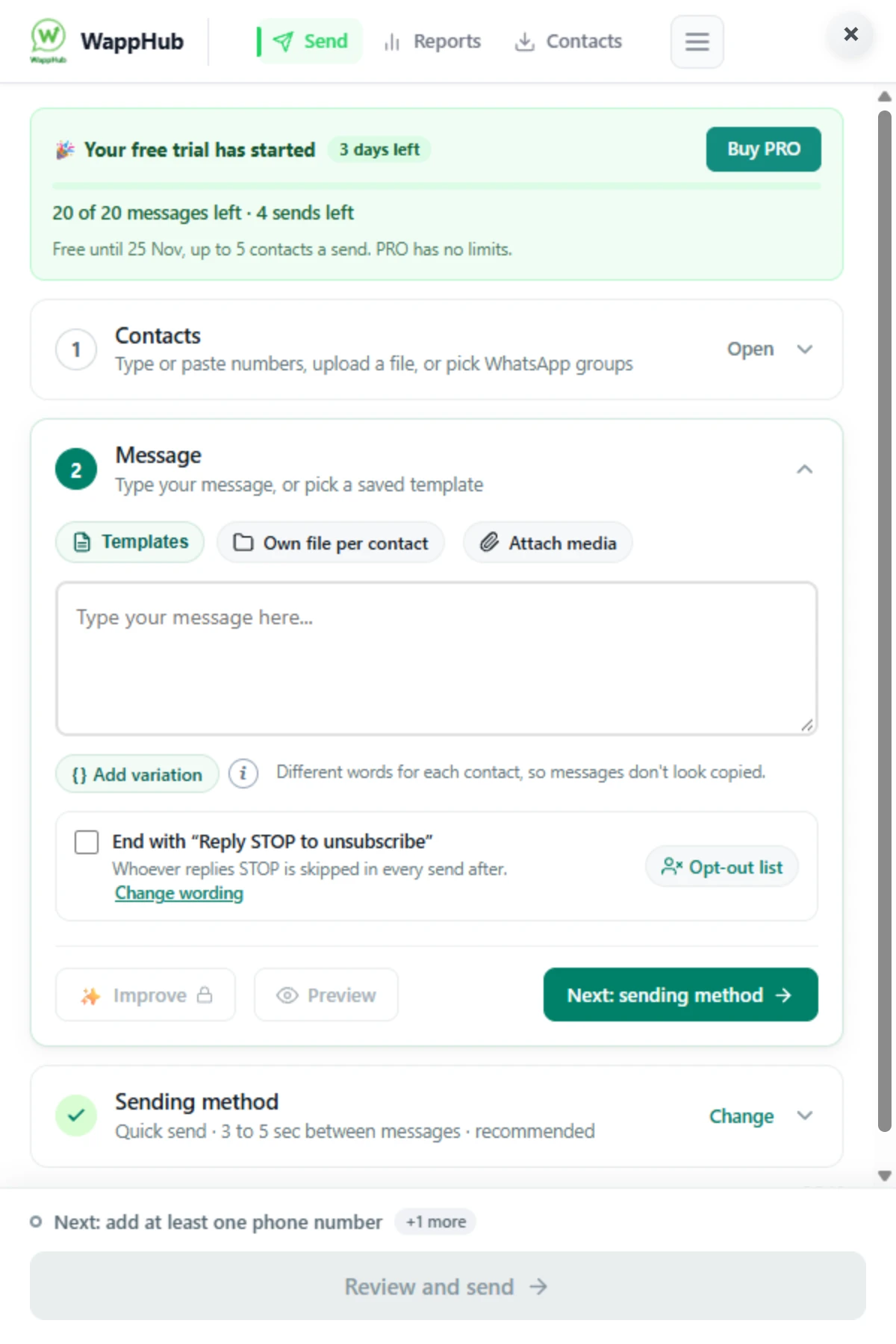
{{name}} in your message: each contact sees their own.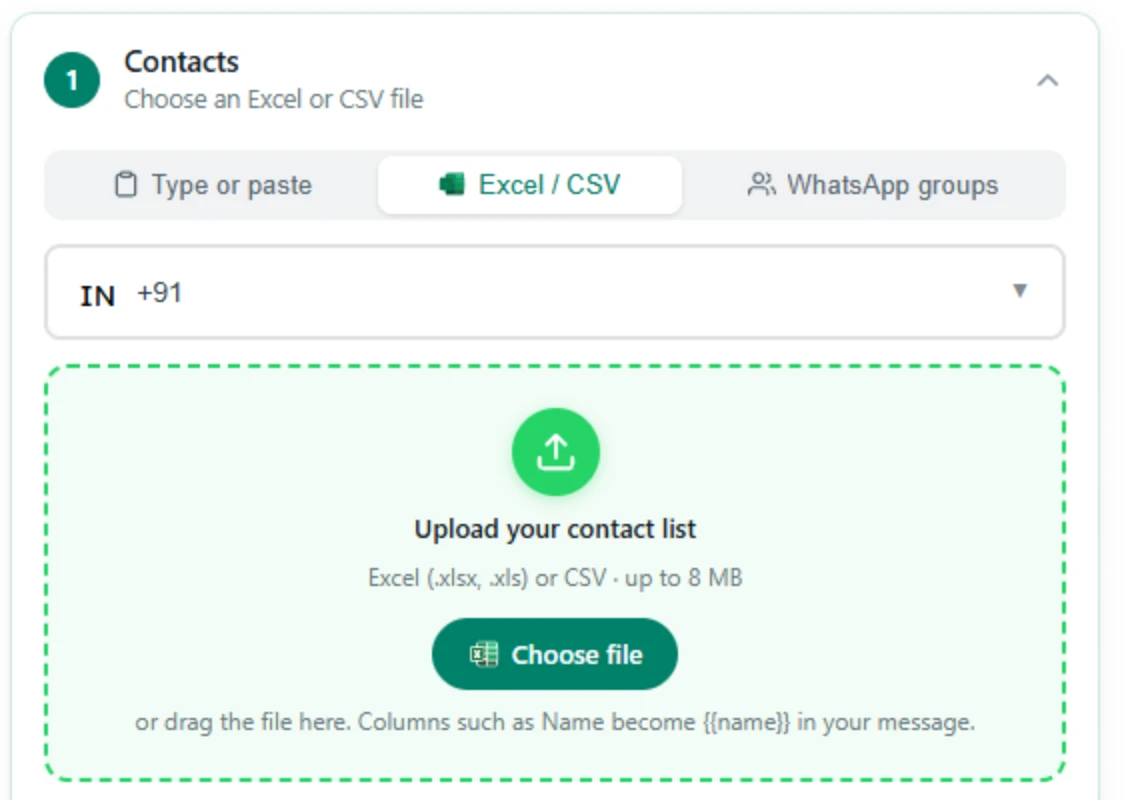
{Hi|Hello}. Each contact gets one at random, so messages don’t look copied.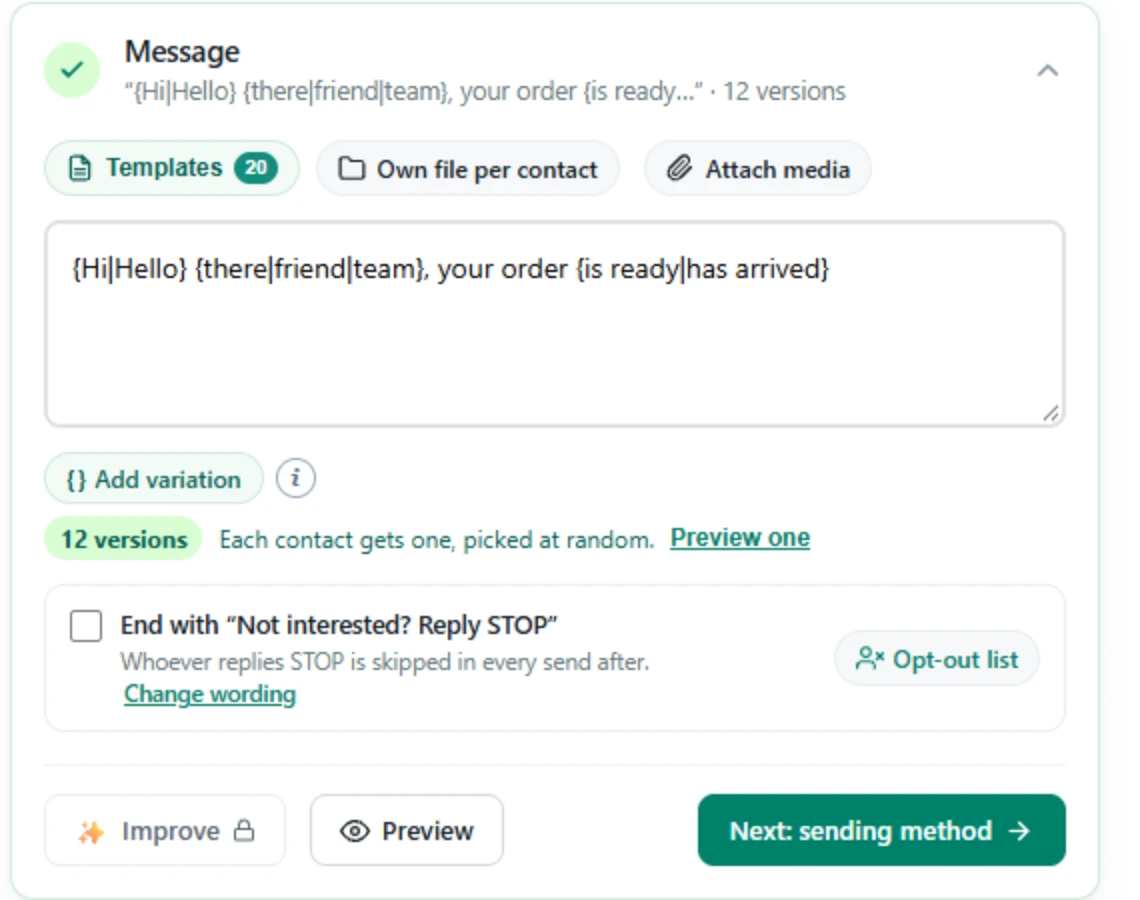
919876543210.pdf), their name (Ravi Kumar.pdf), or a value from an Excel column (INV-1021.pdf).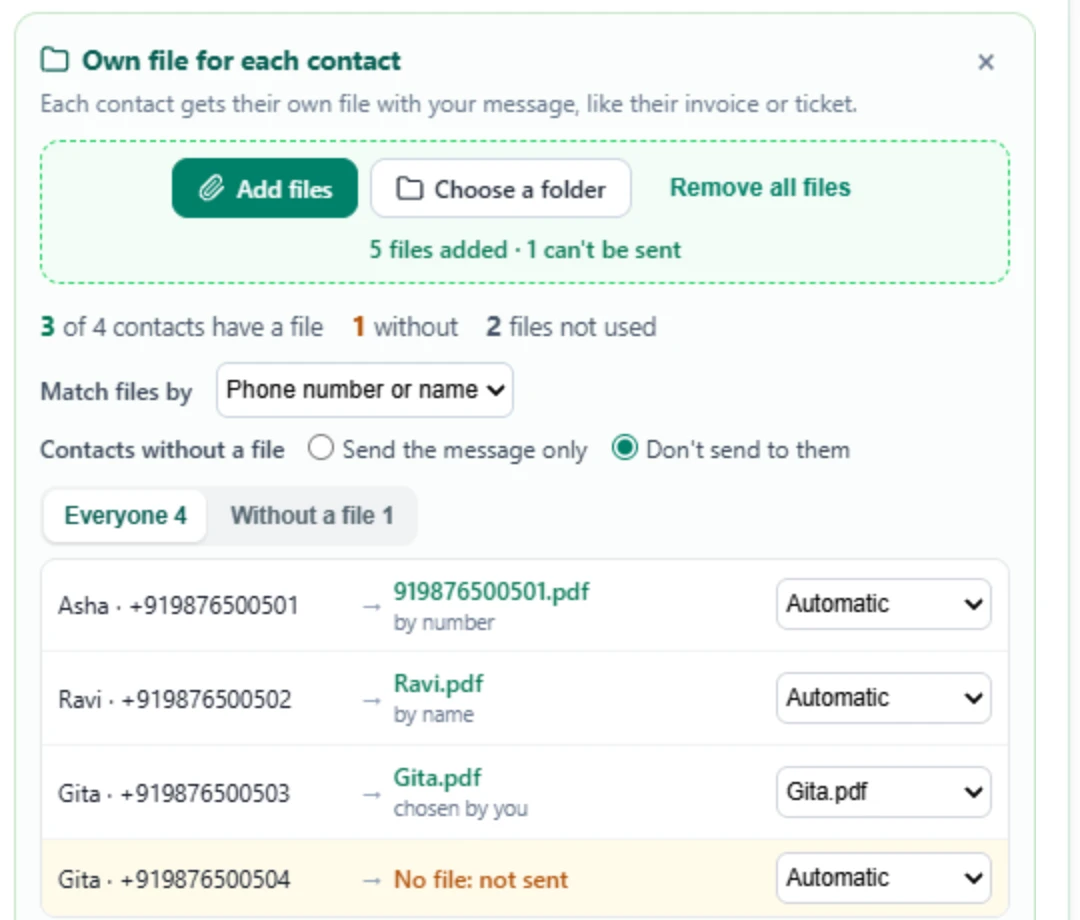
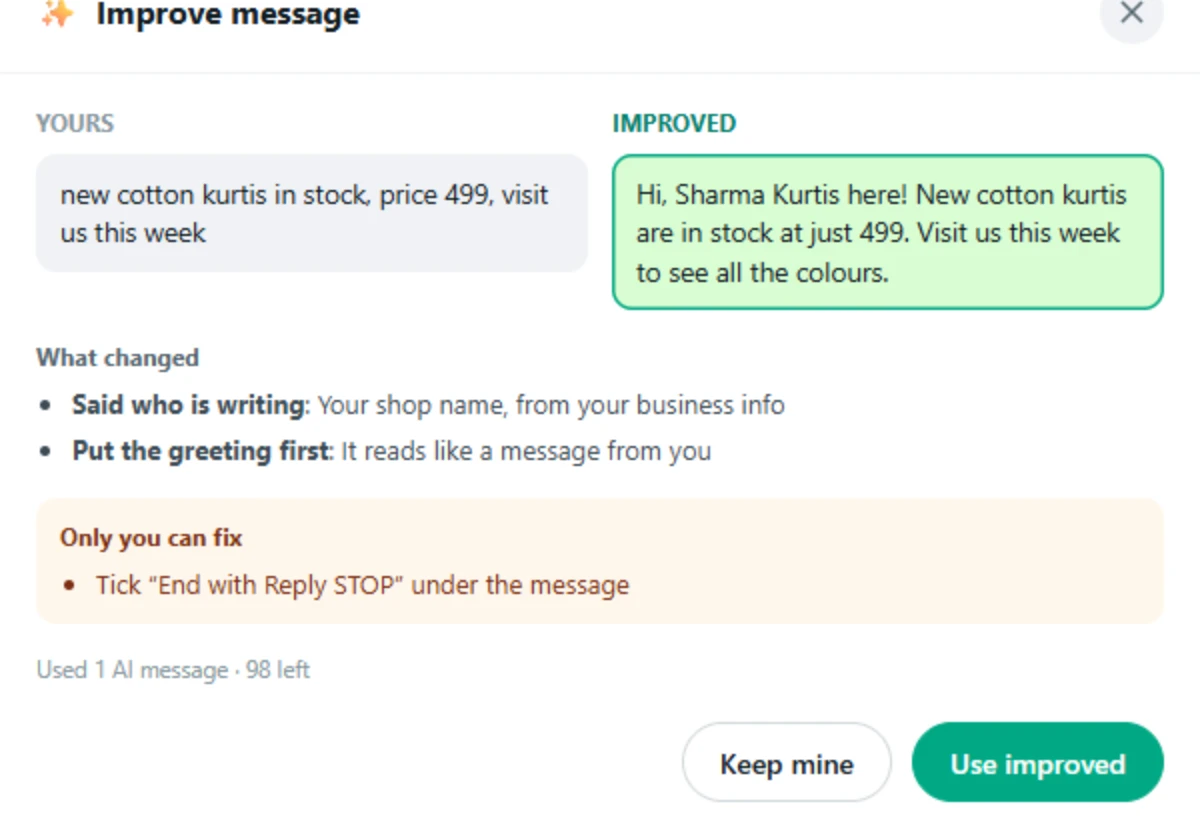
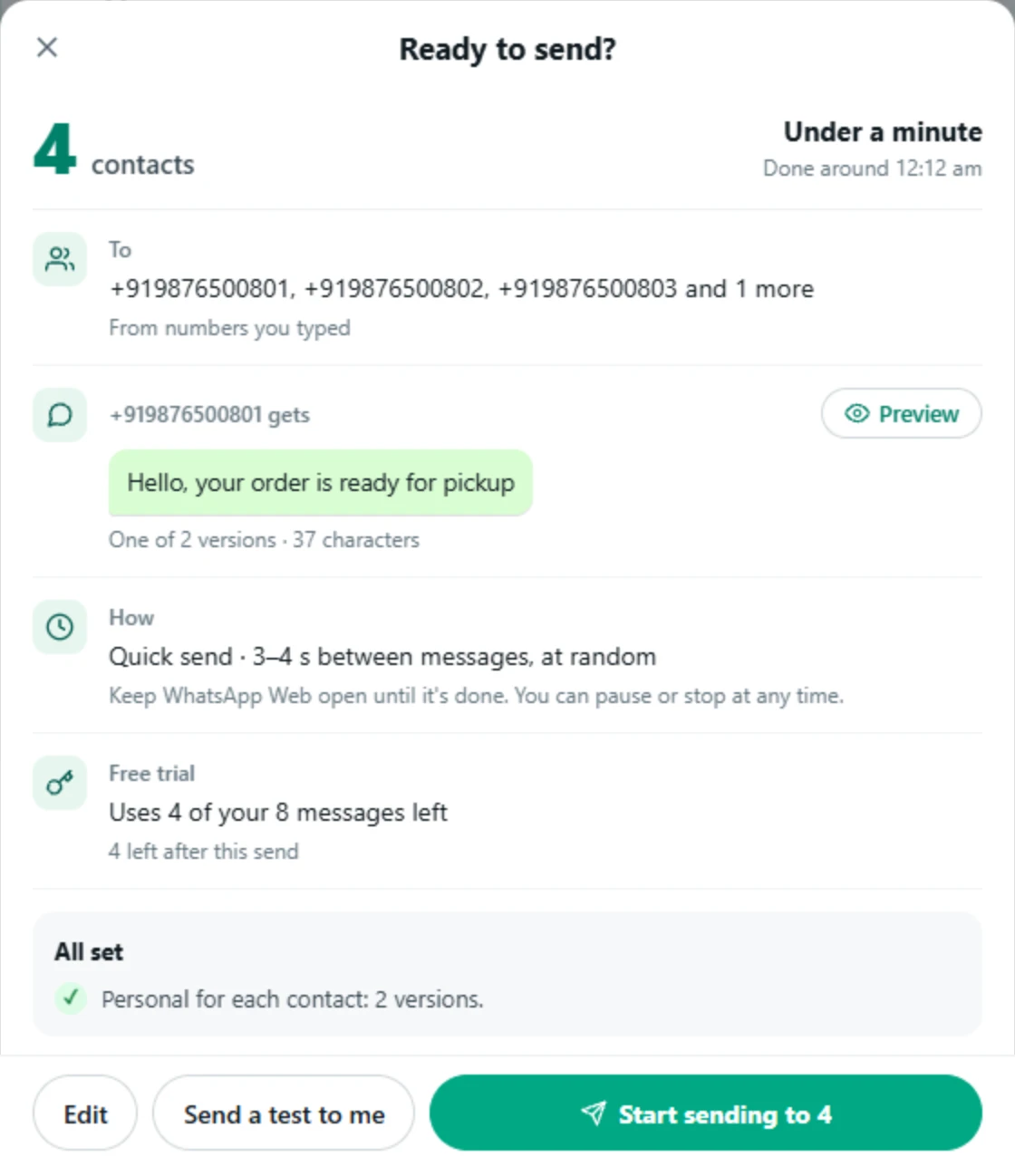
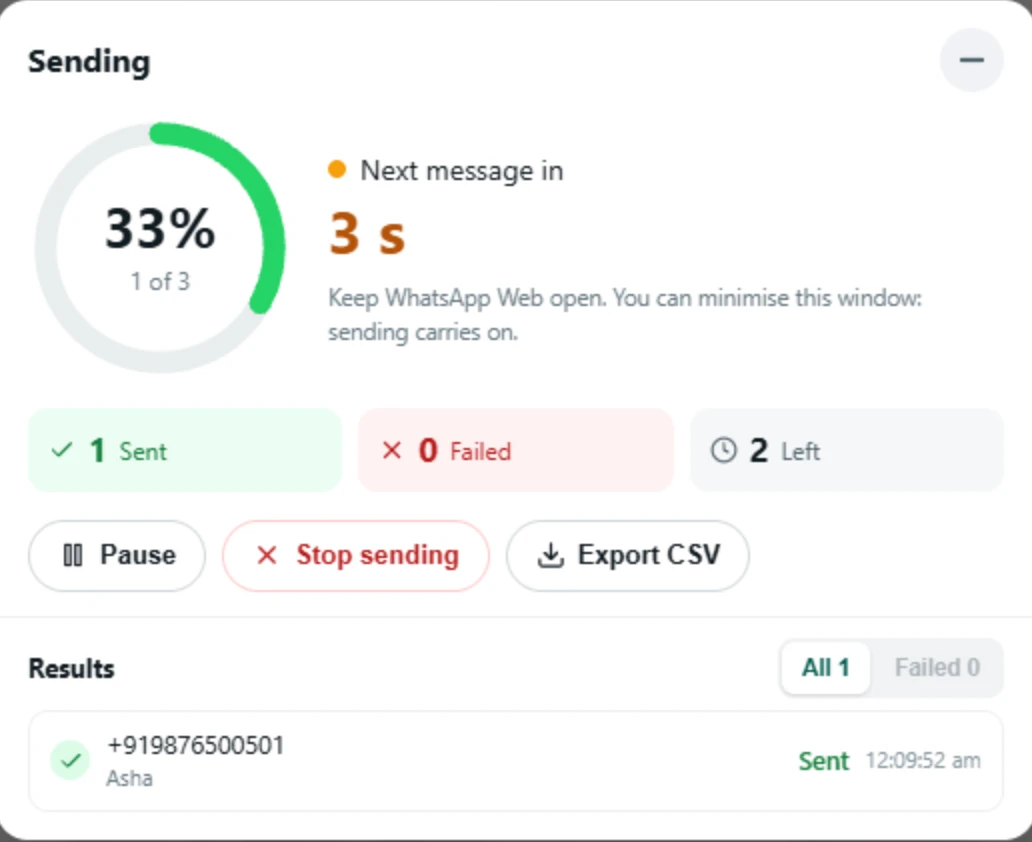
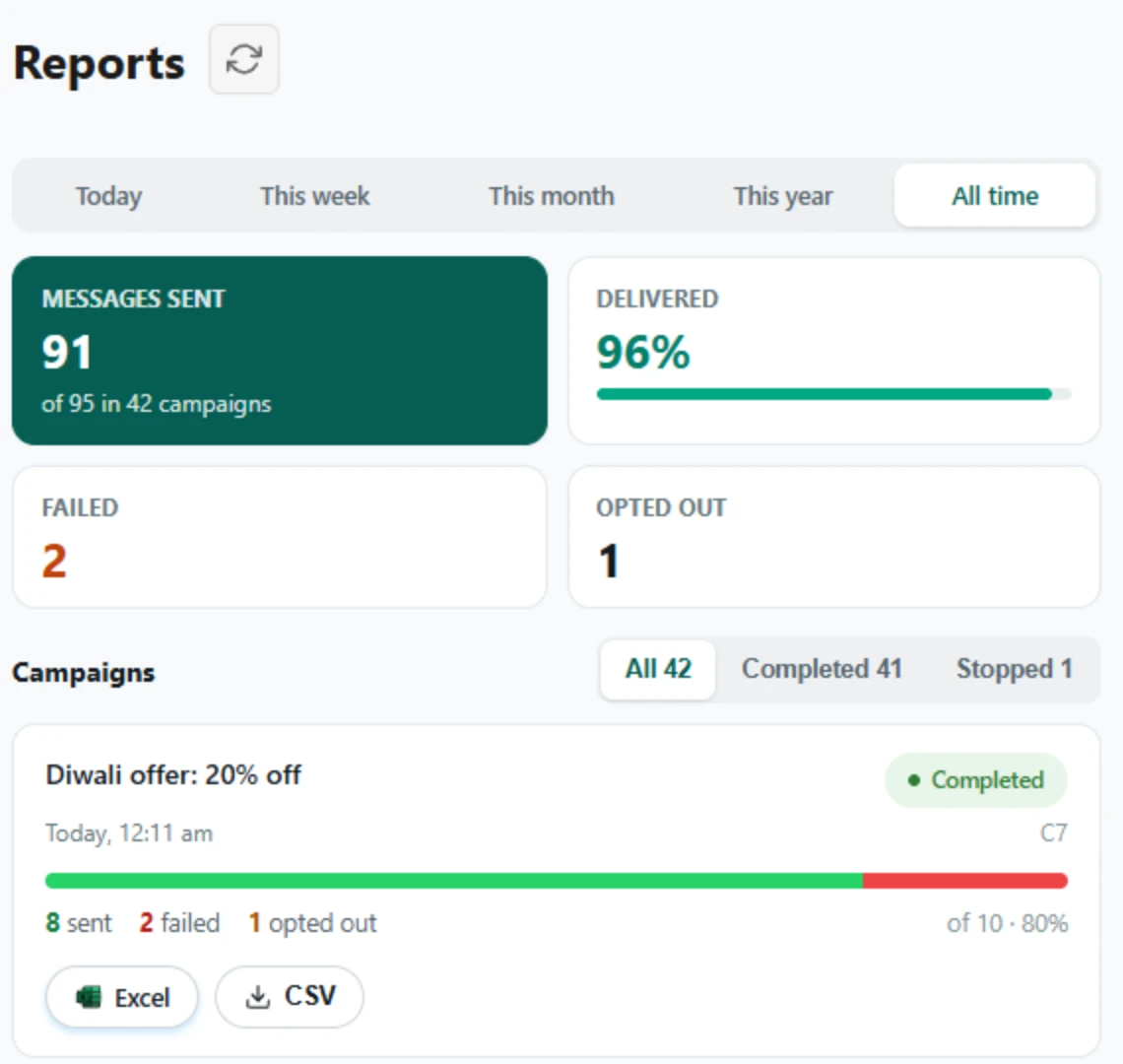
{{name}} becomes that chat’s name.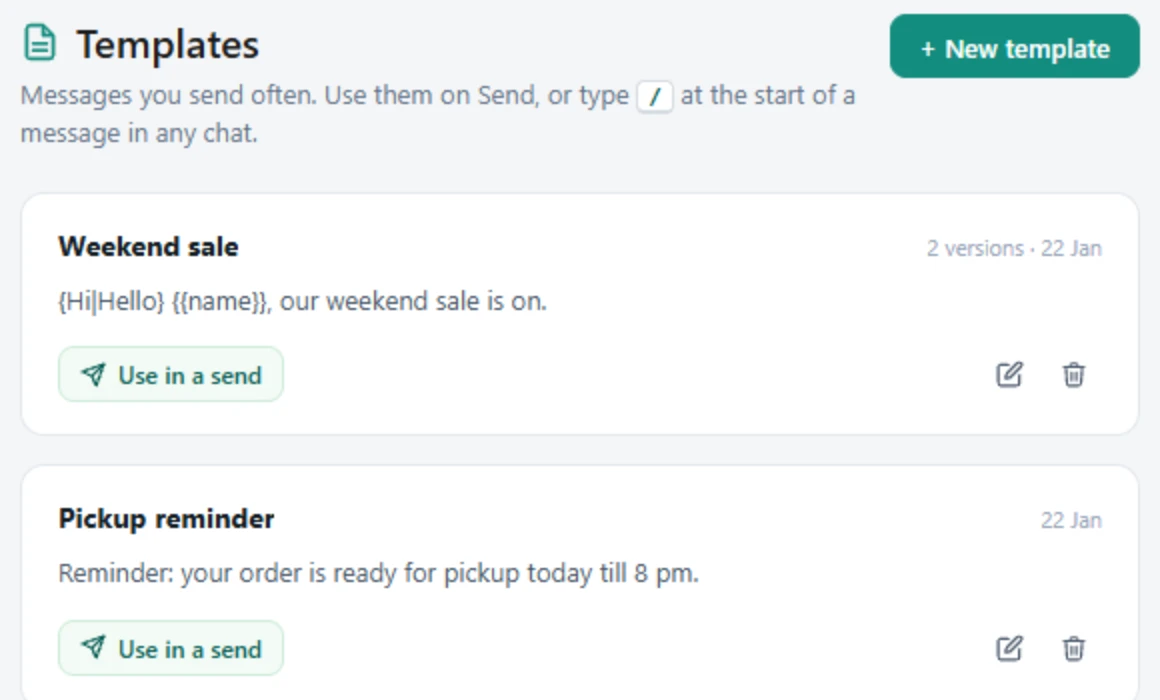
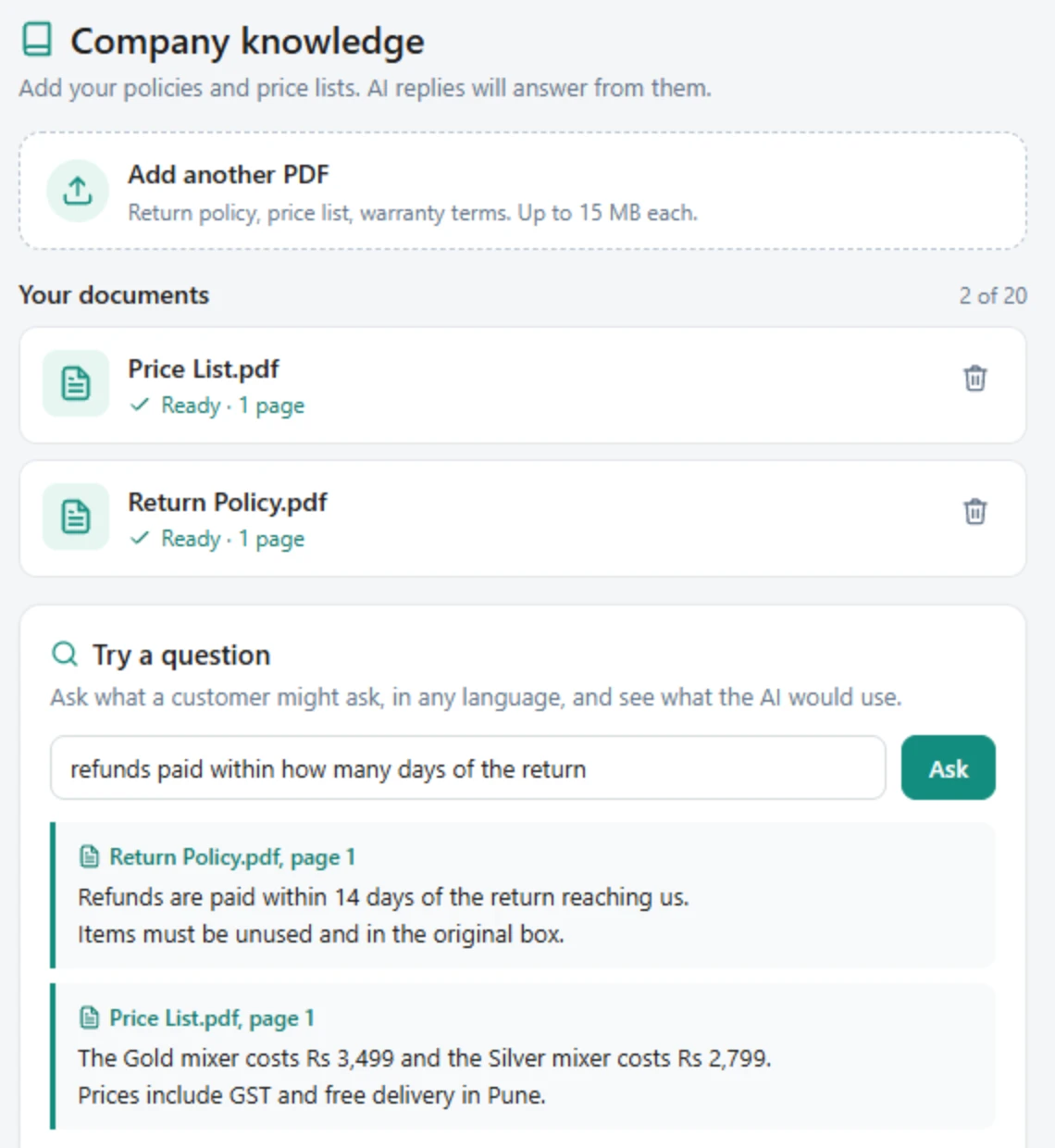
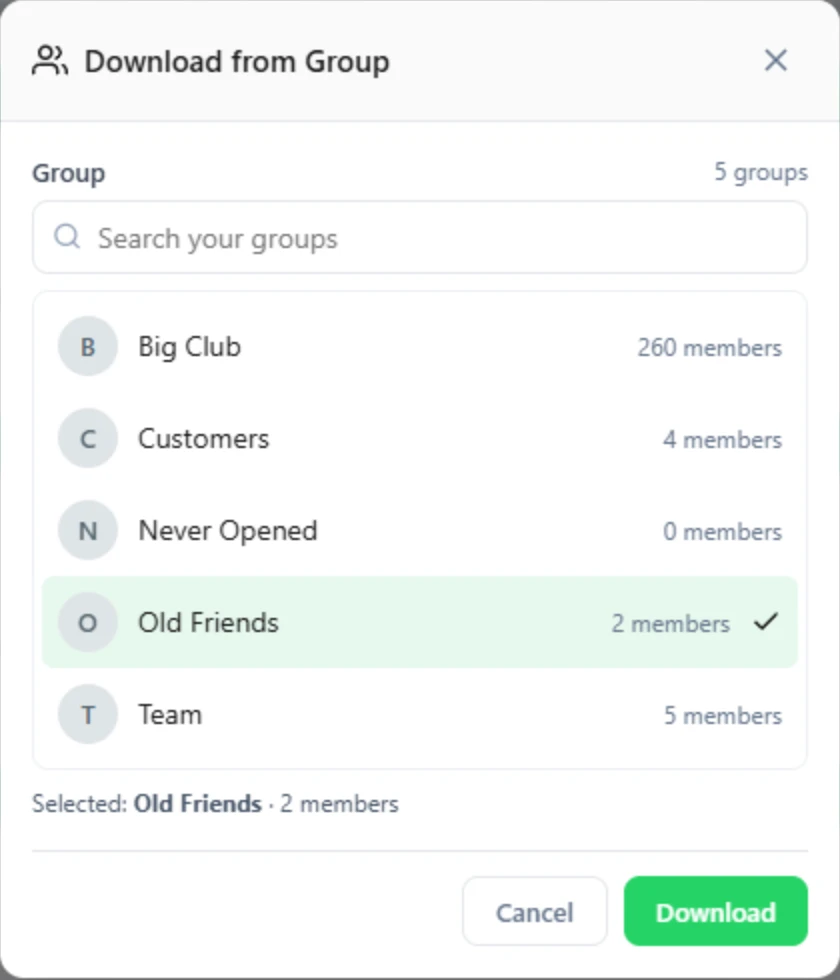
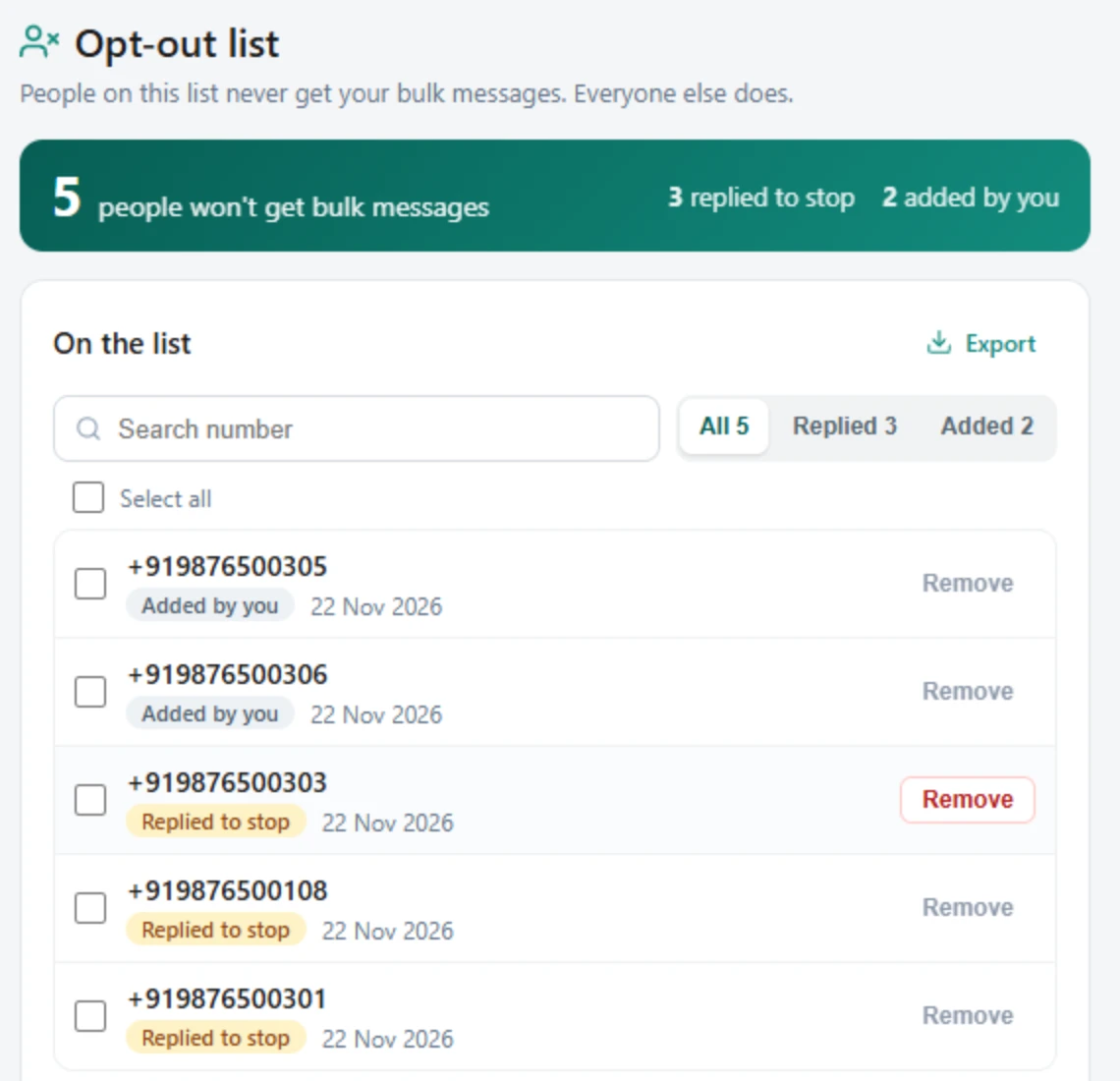
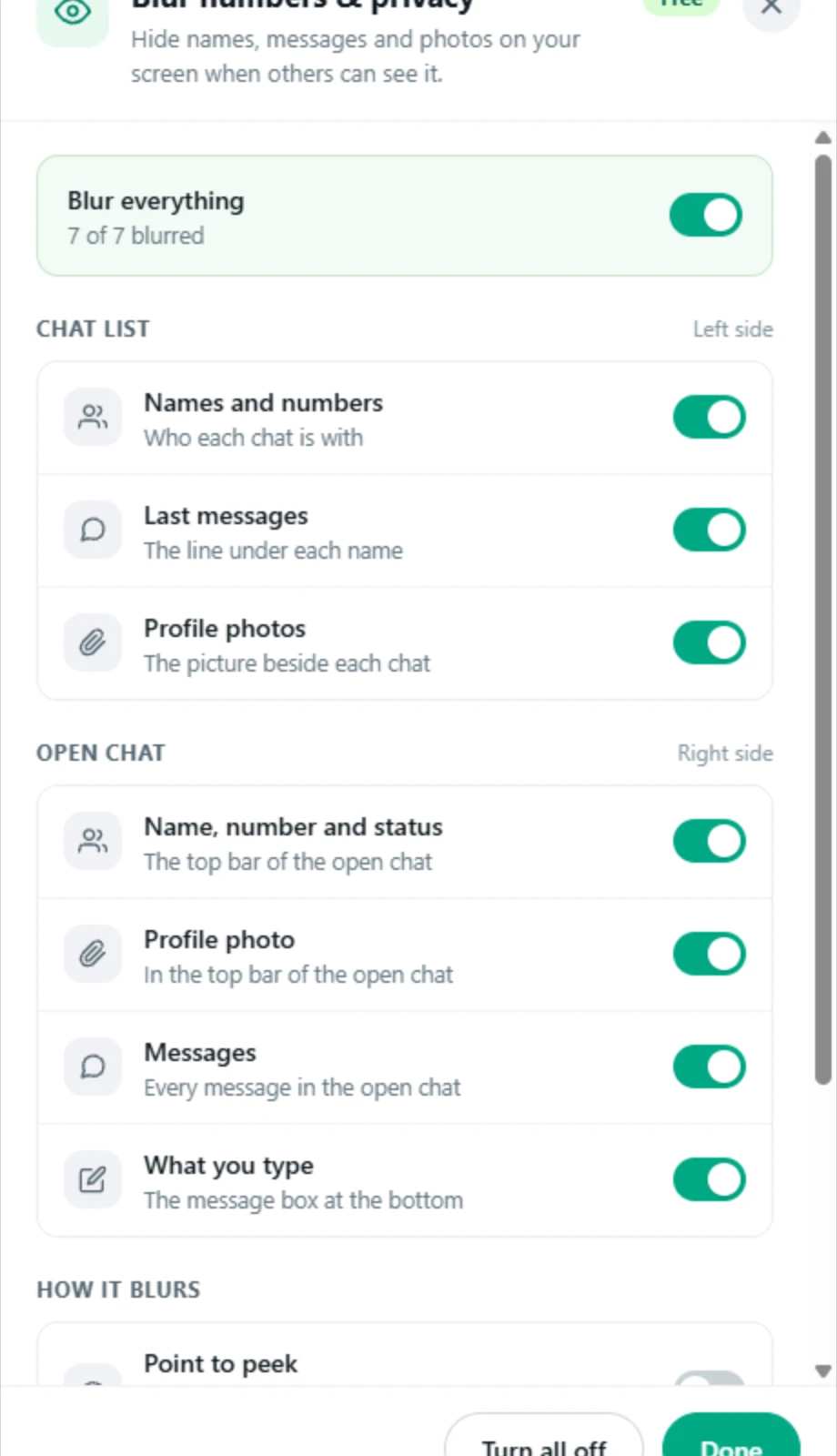
Point at the button: it lists what’s still missing, like a number, the message or the license. Click the line above the button to jump to that step.
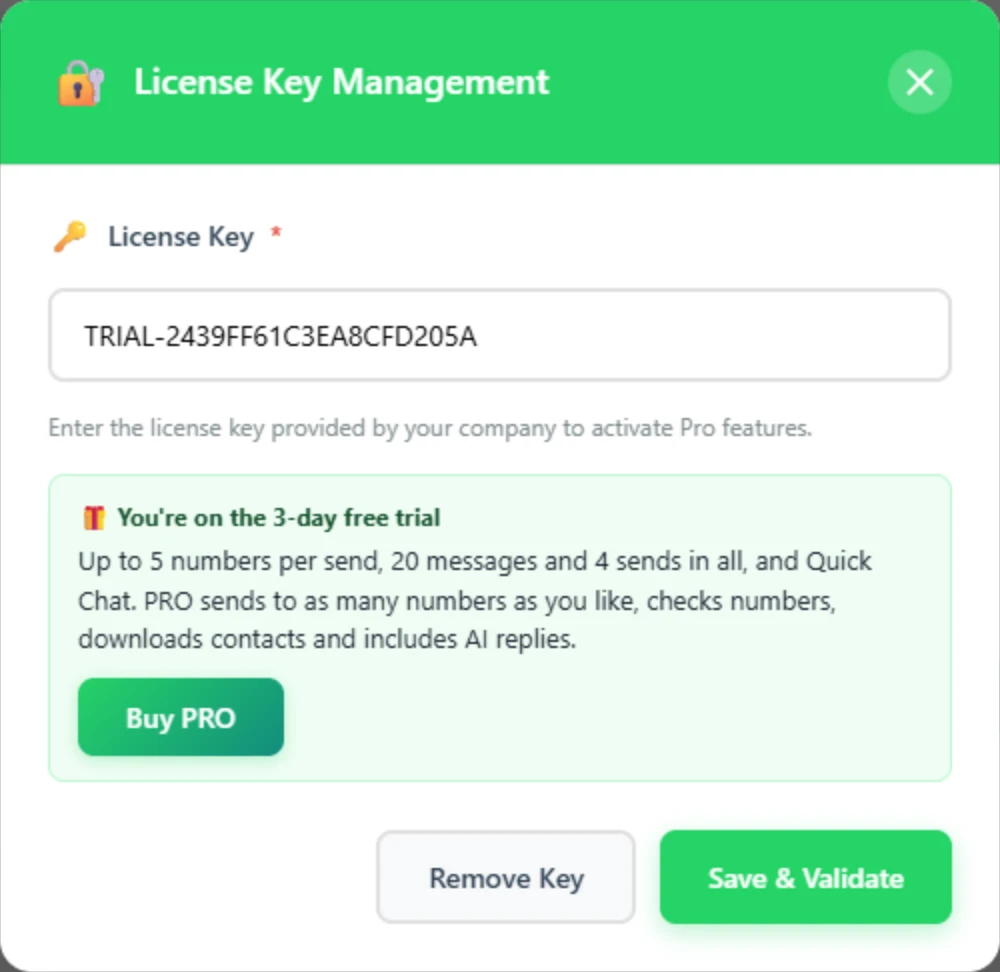
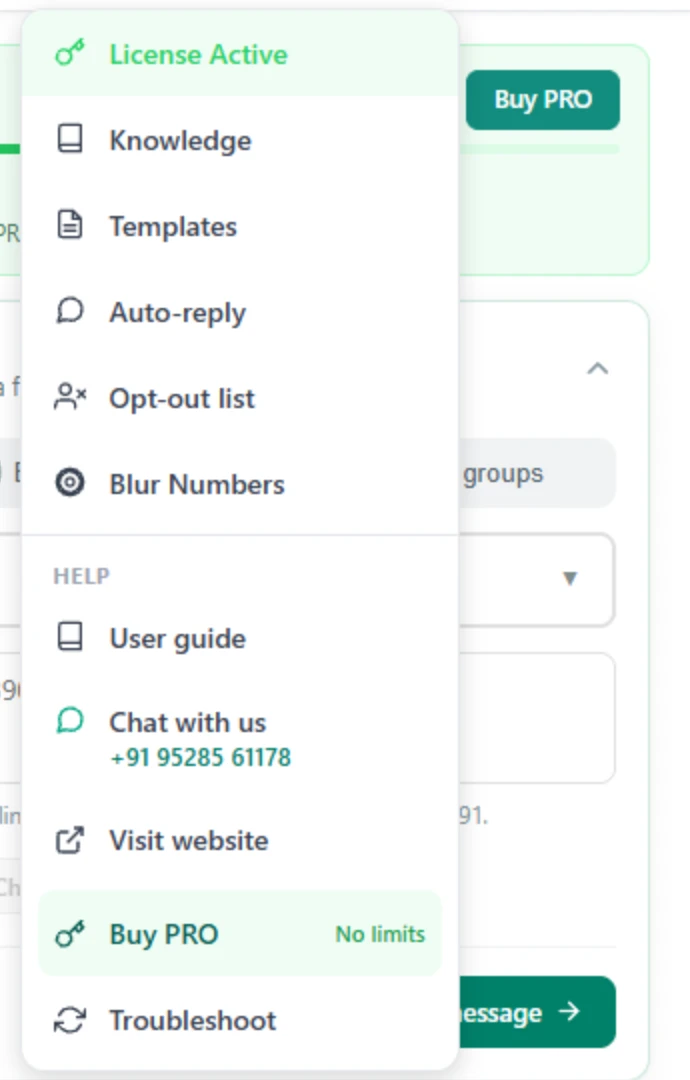
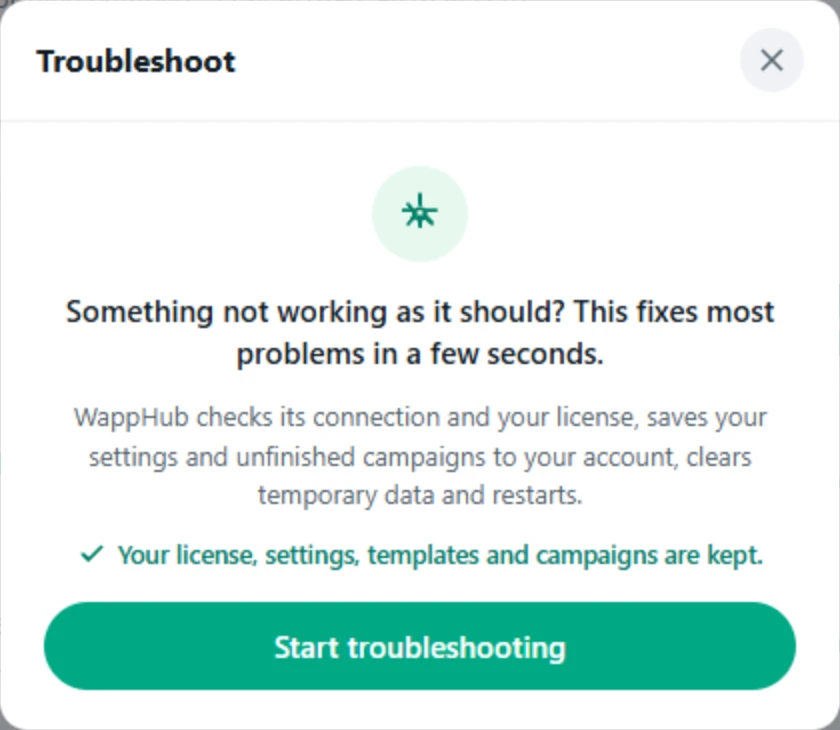
Log in to WhatsApp Web with the number you bought the license for, then click Save & Validate again. If it still fails, open Troubleshoot in the menu.
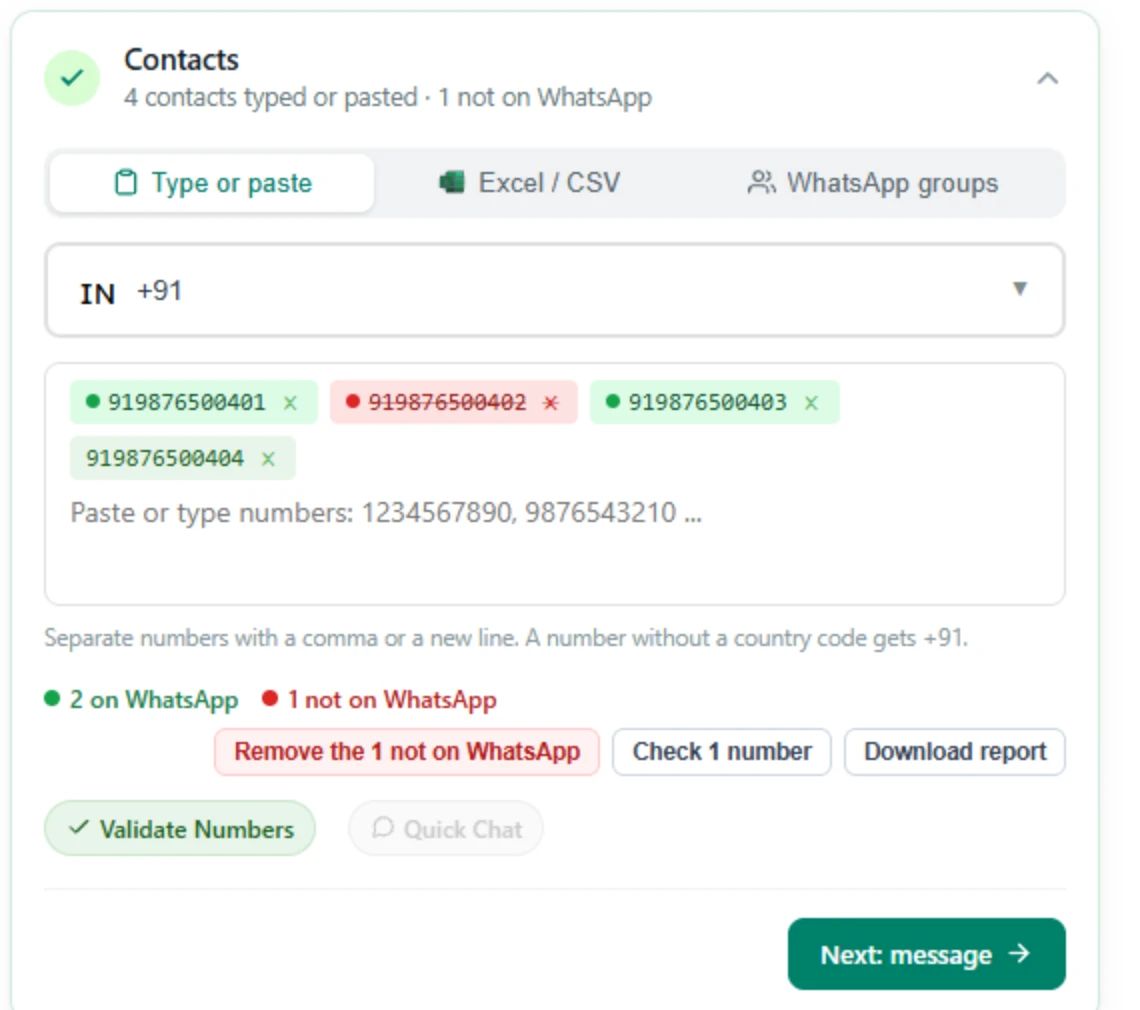
That number isn’t on WhatsApp, so it can’t get messages. Click “Remove the … not on WhatsApp”. If you typed it without a country code, pick the right country first.
Format the phone column as Text and type the numbers again, or use our sample sheet.
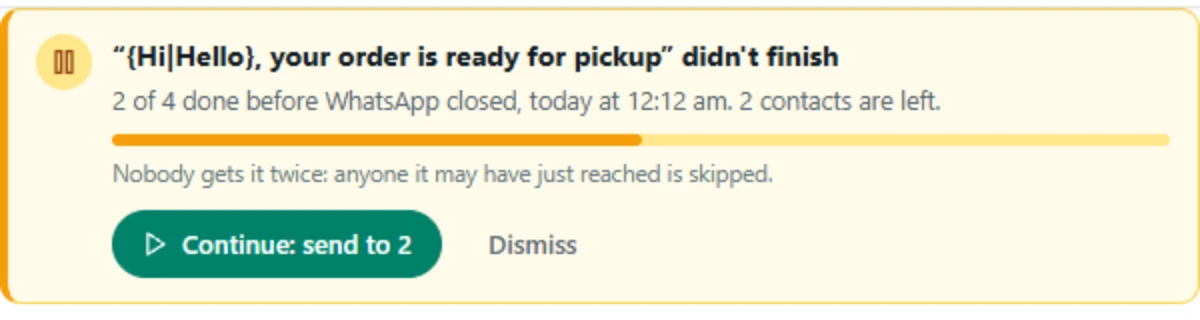
If WhatsApp or Chrome closed, the Send page says the campaign didn’t finish. Click Continue: only the contacts not reached yet get it.
WappHub pauses when something is wrong for your number, like 5 numbers in a row not on WhatsApp, or WhatsApp logging out. The window says why. Fix it, then click Resume.
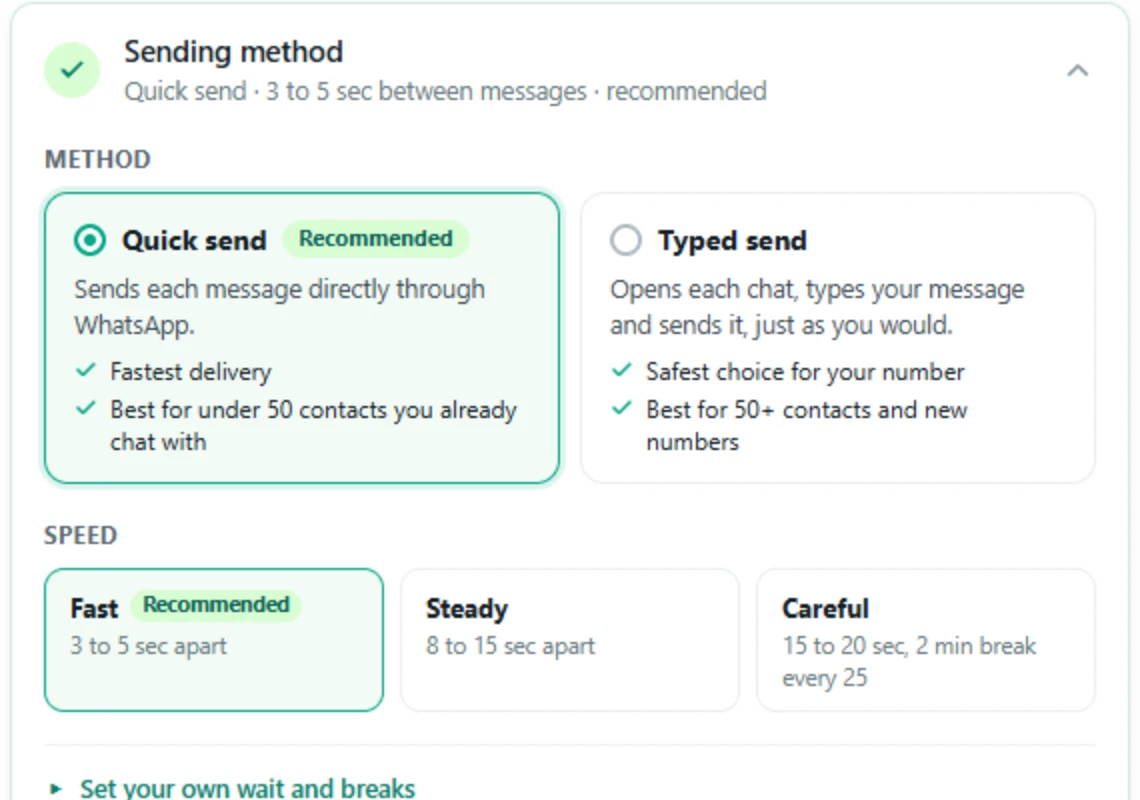
WhatsApp changed something, so WappHub sends by typing until it is updated. Keep the WhatsApp tab open while it sends.
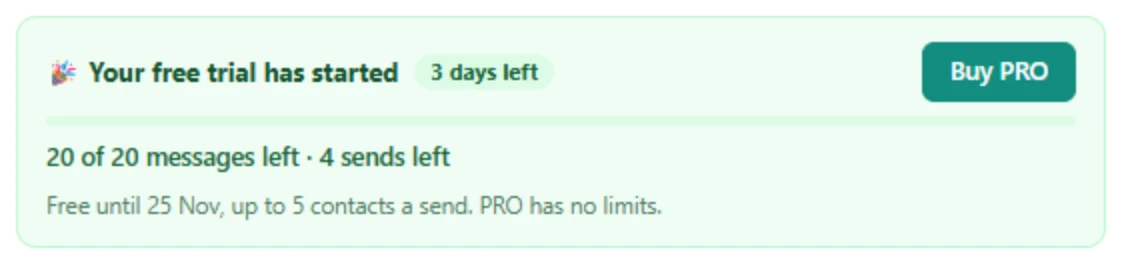
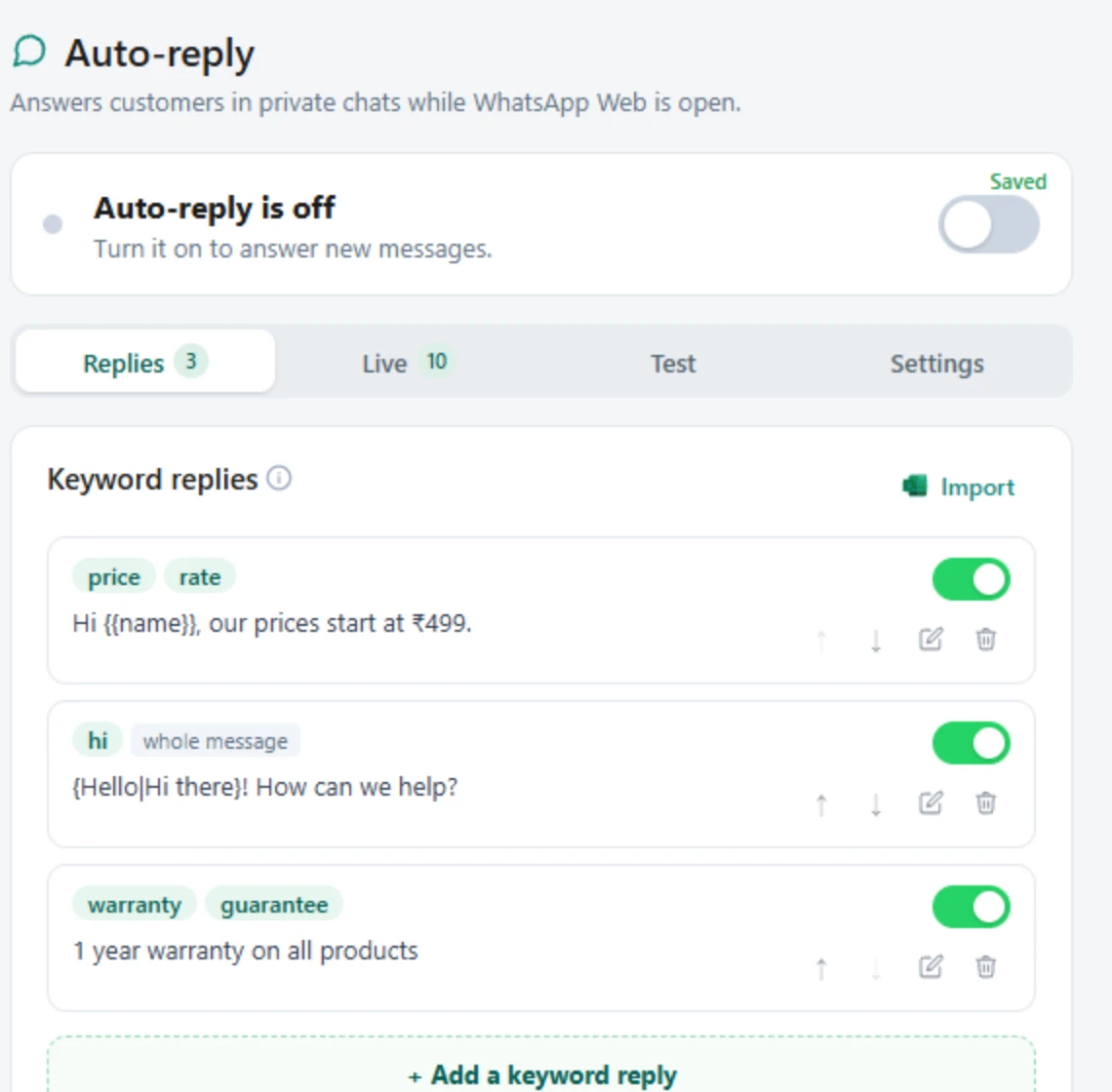
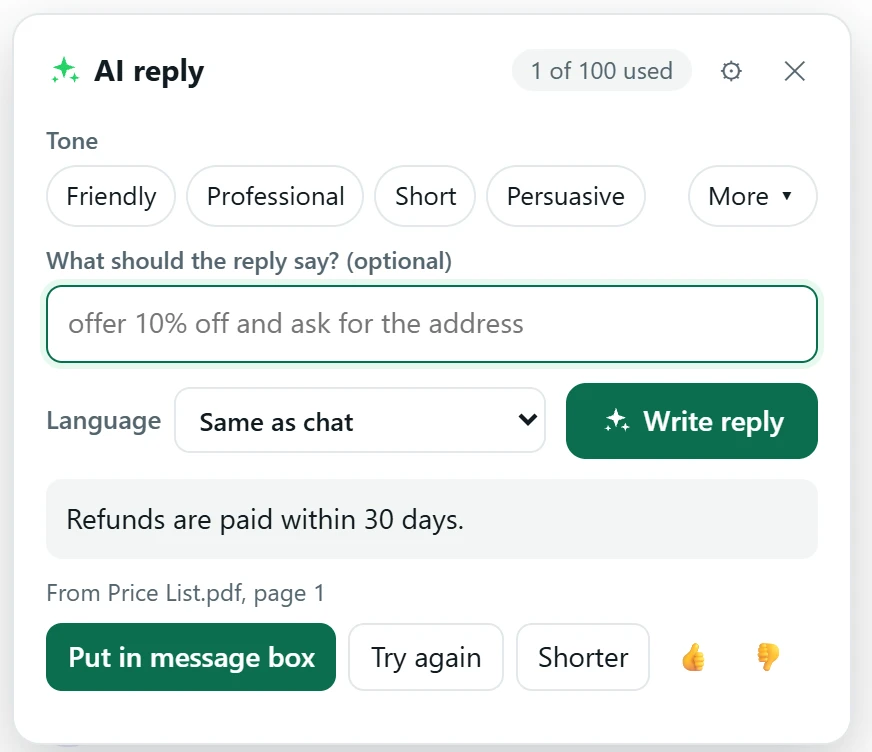
Three days, up to 5 contacts a send, 20 messages and 4 sends in all, 1 template, number checking and Quick Chat. AI, auto-reply and downloads come with PRO.
Message us on WhatsApp or email support@wapphub.com with a screenshot, any time.