Sync Chat setup guide

Three steps inside WhatsApp Web, about five minutes. Every step has a picture, and the numbers on each picture match the steps beside it.
  • About 5 minutes
  • Chrome on a computer
  • Your CRM’s webhook address
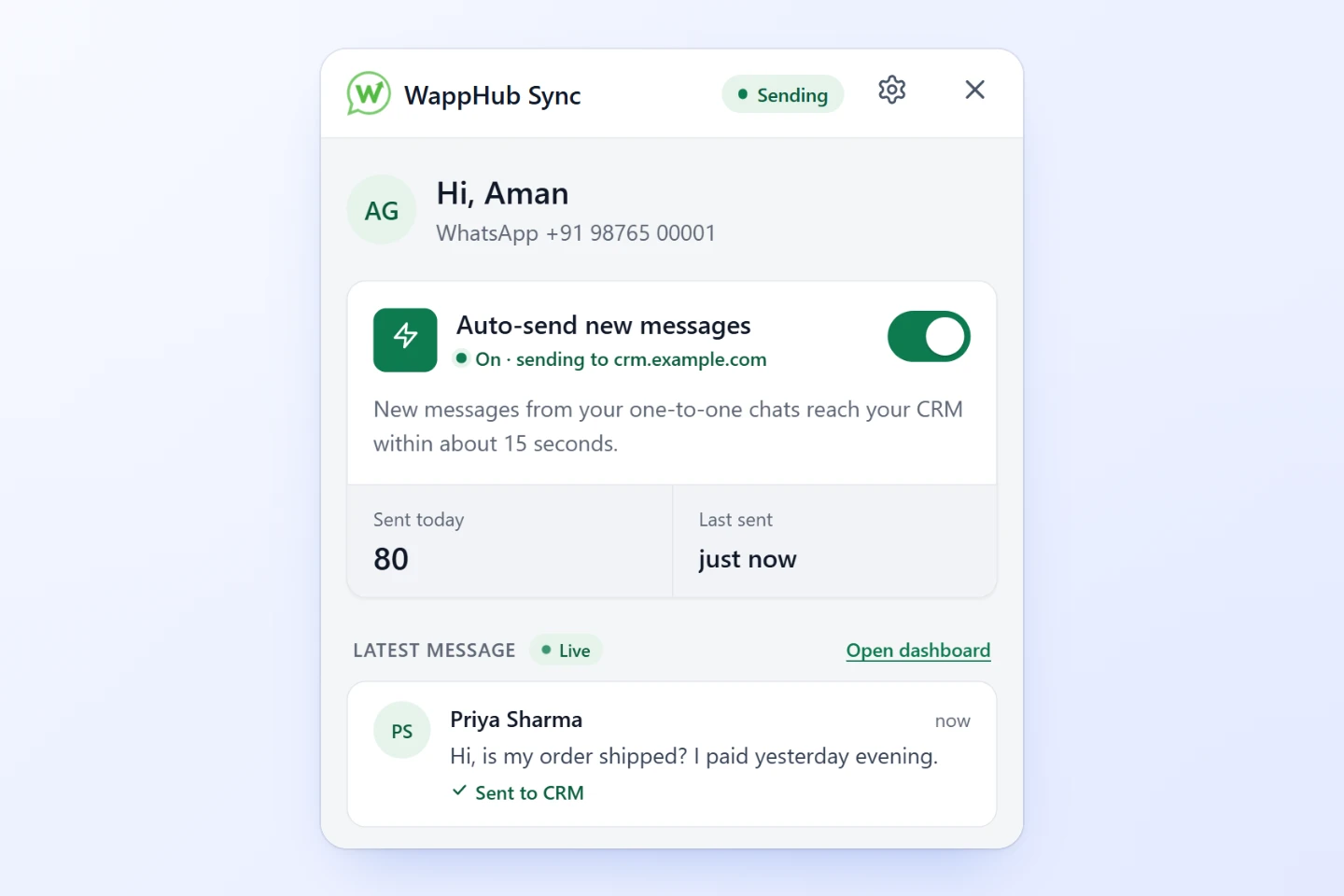
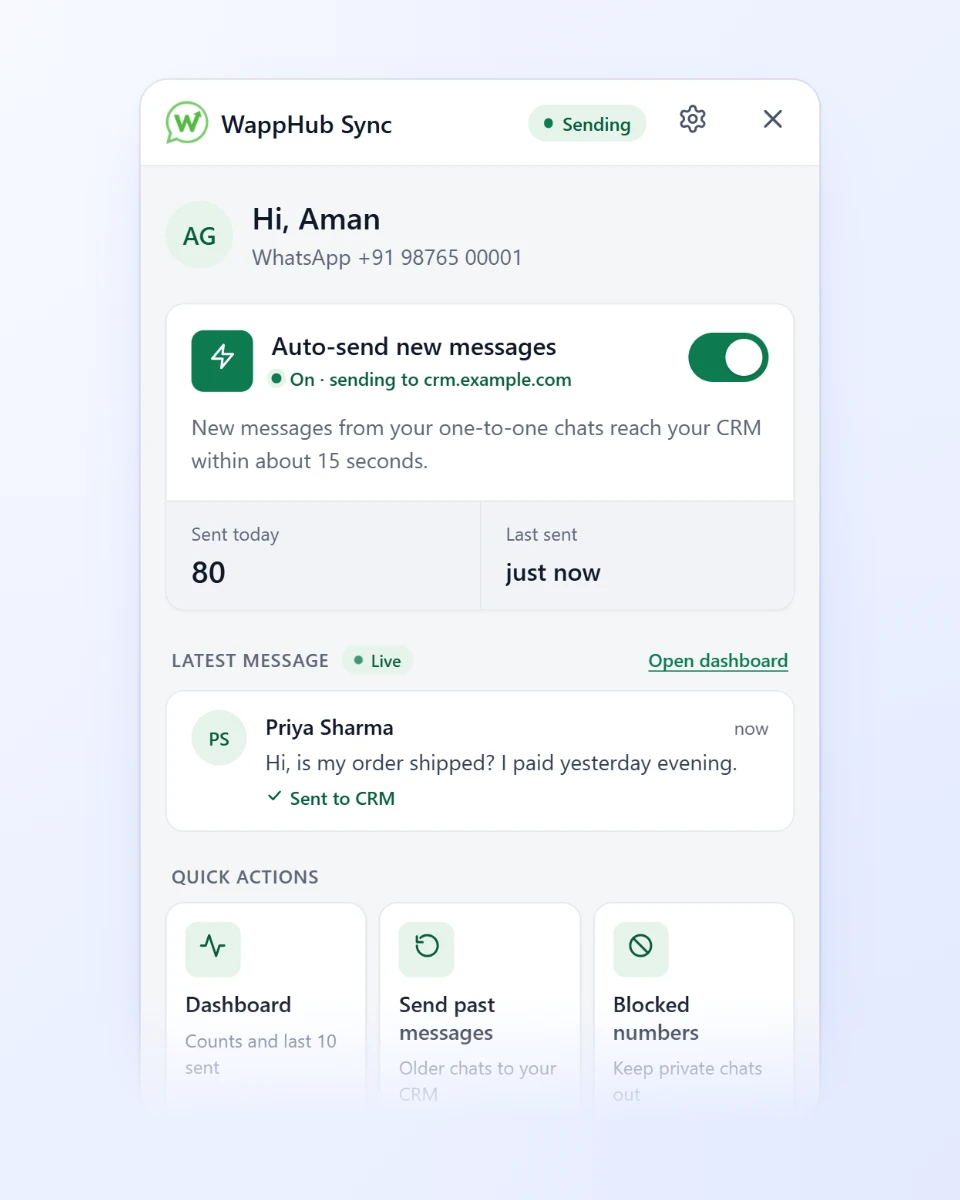
The WappHub Sync panel with auto-send on, 80 messages sent today and the latest message sent to the CRM

Get started

Step 1: Install Sync Chat

  1. Open Google Chrome on your computer.
  2. Click Add to Chrome at the top of this page, then Add extension.

Right after you install, WhatsApp Web opens with the WappHub panel ready, so you can go straight to step 3.

Step 2: Open the panel in WhatsApp Web

  1. Go to web.whatsapp.com and log in with your phone, if you aren’t already.
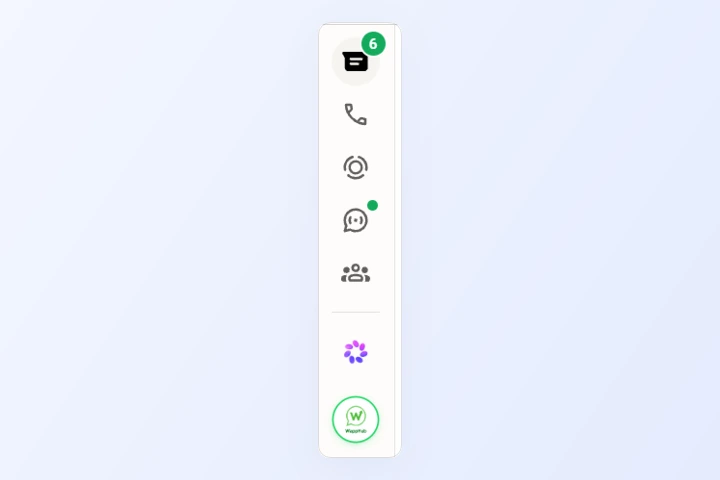
  2. Click the round WappHub button at the bottom of the left bar. The WappHub Sync panel opens.

No WappHub button? Refresh the page once.

Set up: 3 steps in the panel

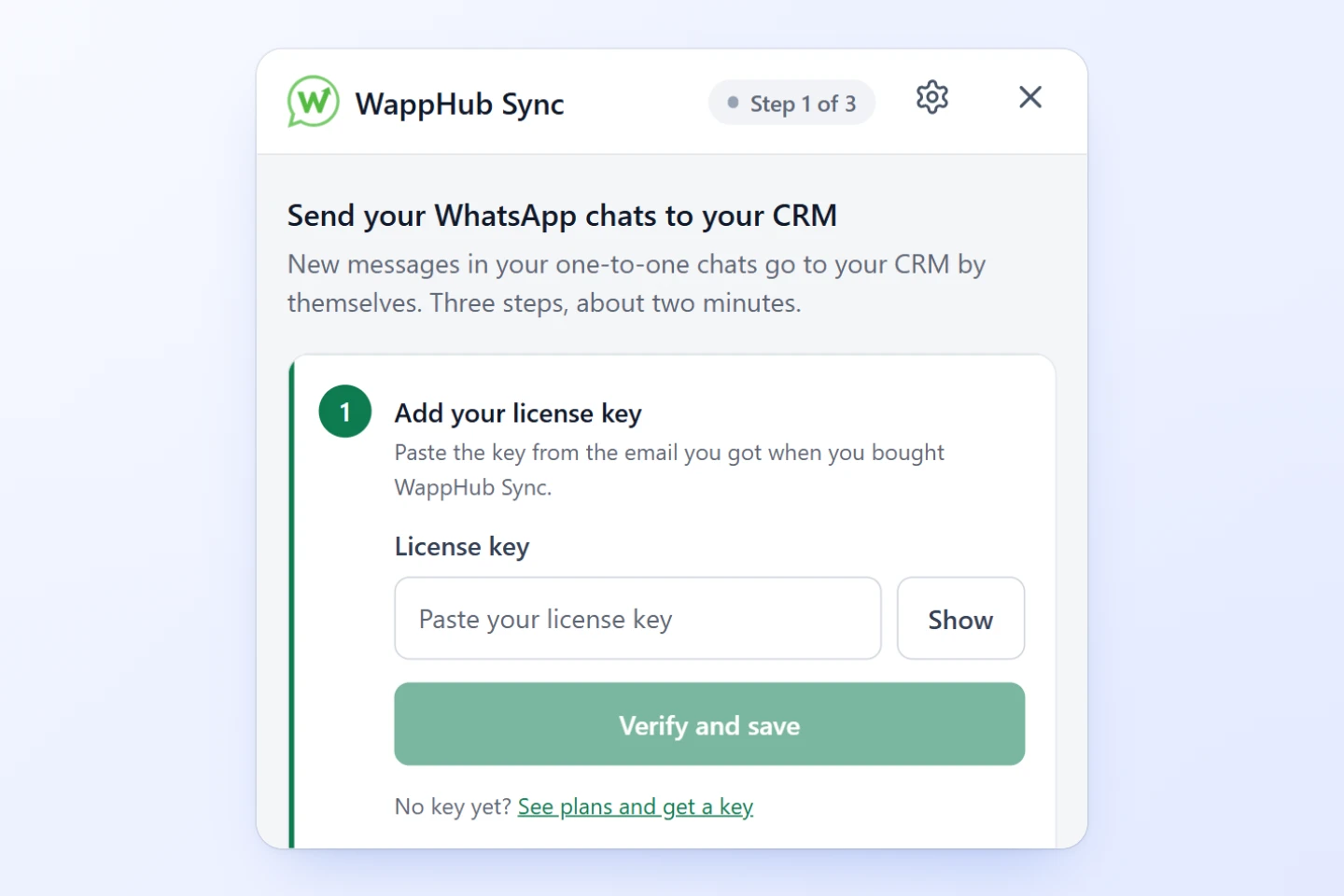
Step 3: Add your license key

  1. Paste the license key from your purchase email.
  2. Click Verify and save. You’ll see your plan and the date it’s valid until.
  3. No key yet? Click See plans and get a key.

If the key is wrong, the panel says why in plain words. A Bulk Sender key won’t work here: Sync Chat has its own key.

Step 4: Connect your CRM

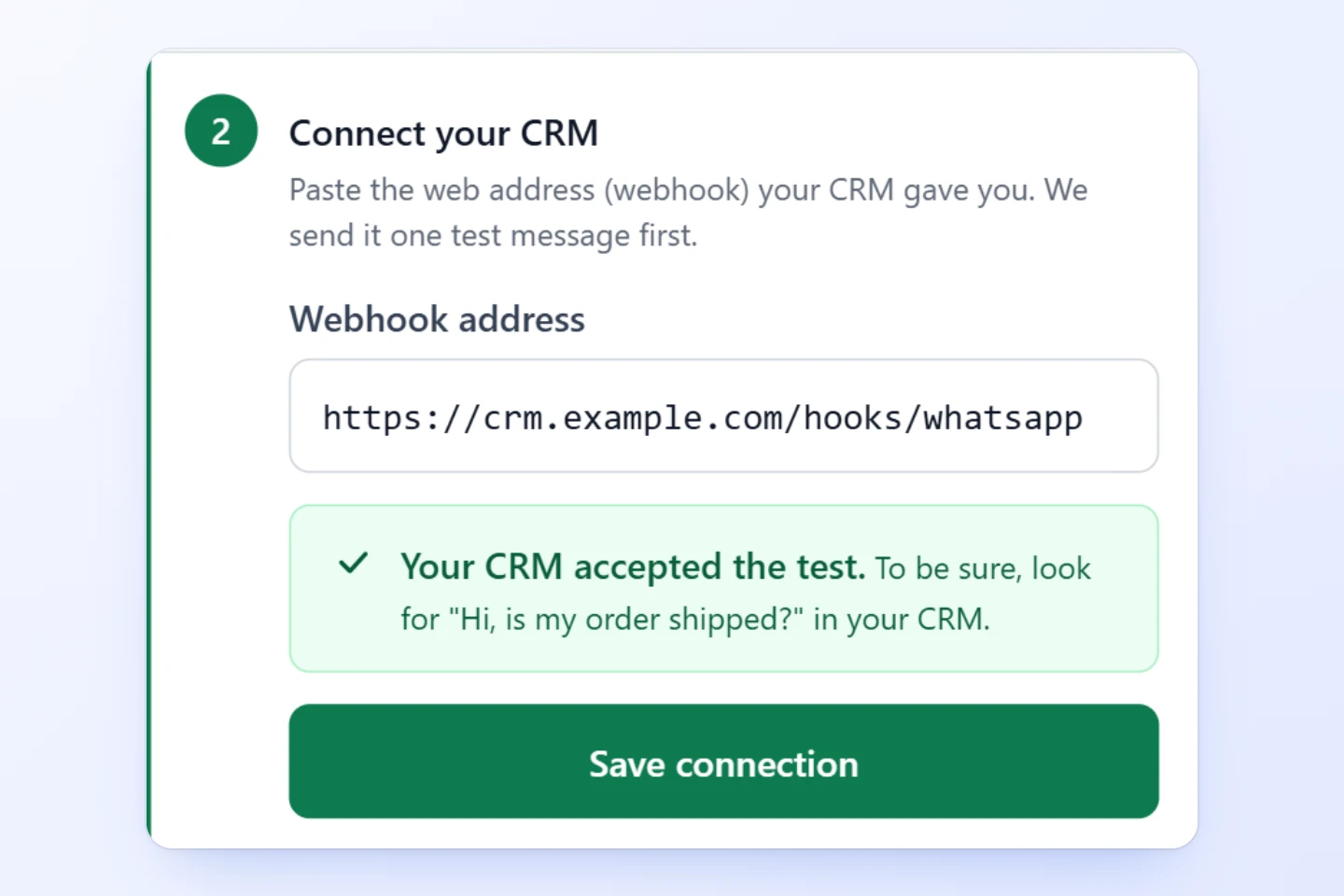
  1. Paste the webhook address your CRM gave you, then click Send a test message.
  2. Wait for the green Your CRM accepted the test. To be sure, find the message “Hi, is my order shipped?” in your CRM.
  3. Click Save connection.

Don’t have the address? Open Where do I find this address? in the panel, or search your CRM’s help for “incoming webhook”. With PRO, our team connects it with you.

Step 5: Turn on auto-send

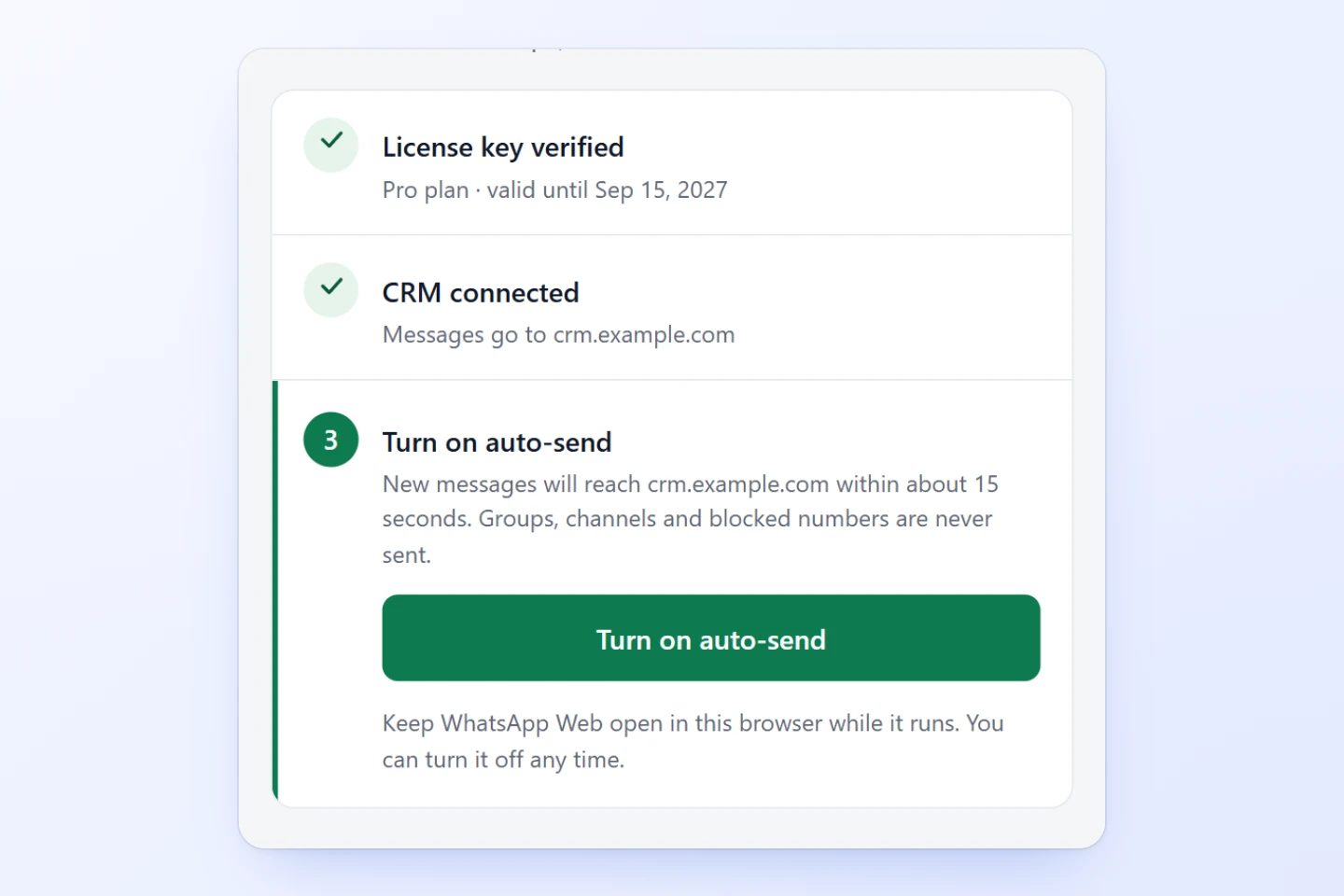
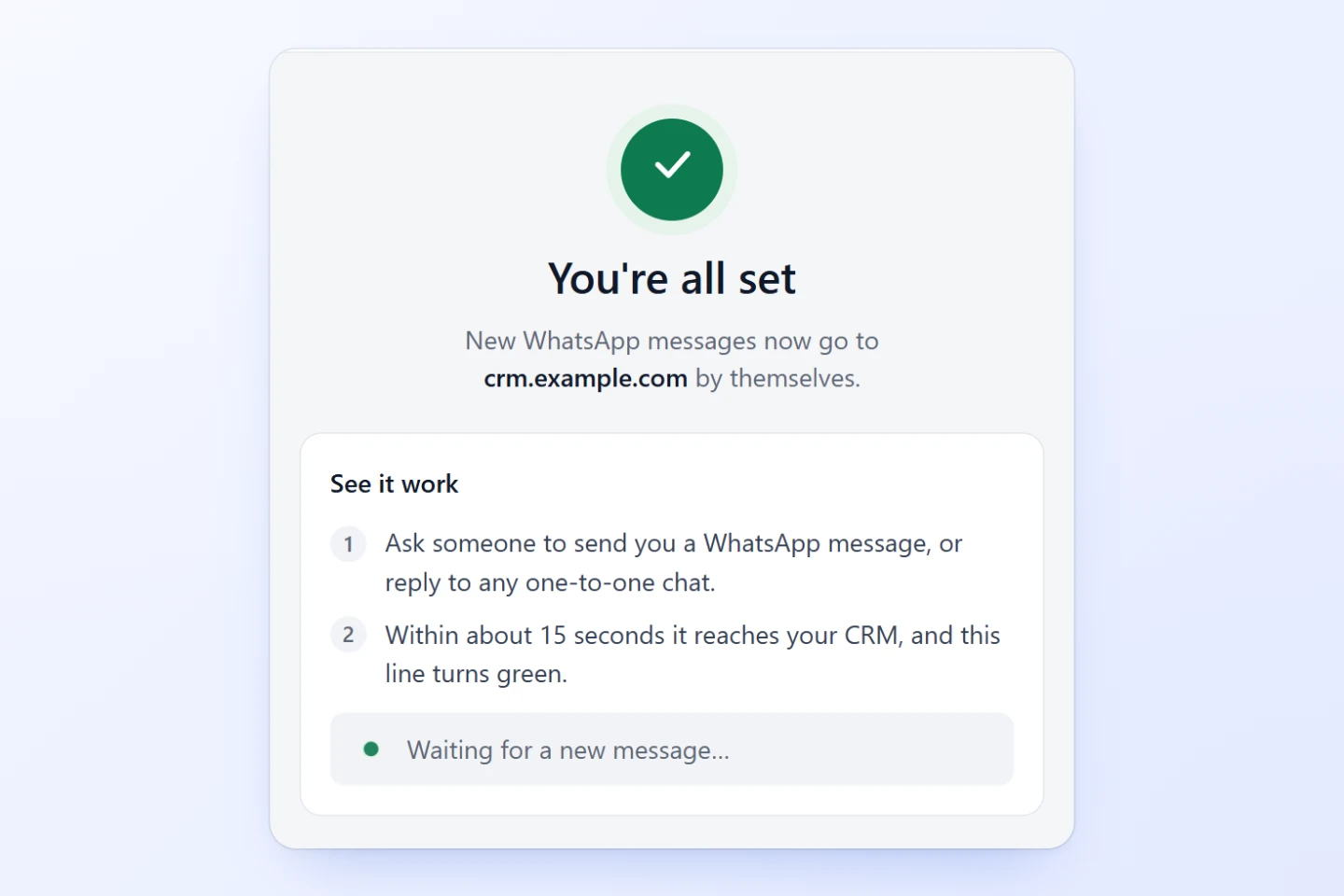
  1. Click Turn on auto-send. From now on, new messages reach your CRM within about 15 seconds.

Keep WhatsApp Web open in Chrome. Only one-to-one chats are sent: groups, channels, status updates and blocked numbers never are.

Step 6: Check that it works

  1. Ask someone to send you a WhatsApp message, or reply to any one-to-one chat. Within about 15 seconds this line turns green, and the message is in your CRM.
  2. Click Done. You can close the panel: sending carries on while WhatsApp Web is open.

Every day

Step 7: Read your home screen

  1. Sending means everything works. If something needs fixing, it turns red, and the panel says what to do.
  2. The Auto-send switch turns sending on or off. While it’s off, new messages aren’t sent.
  3. Sent today and Last sent show what reached your CRM.
  4. Latest message shows the newest message, live, and what happened to it.

Step 8: See how many messages were sent

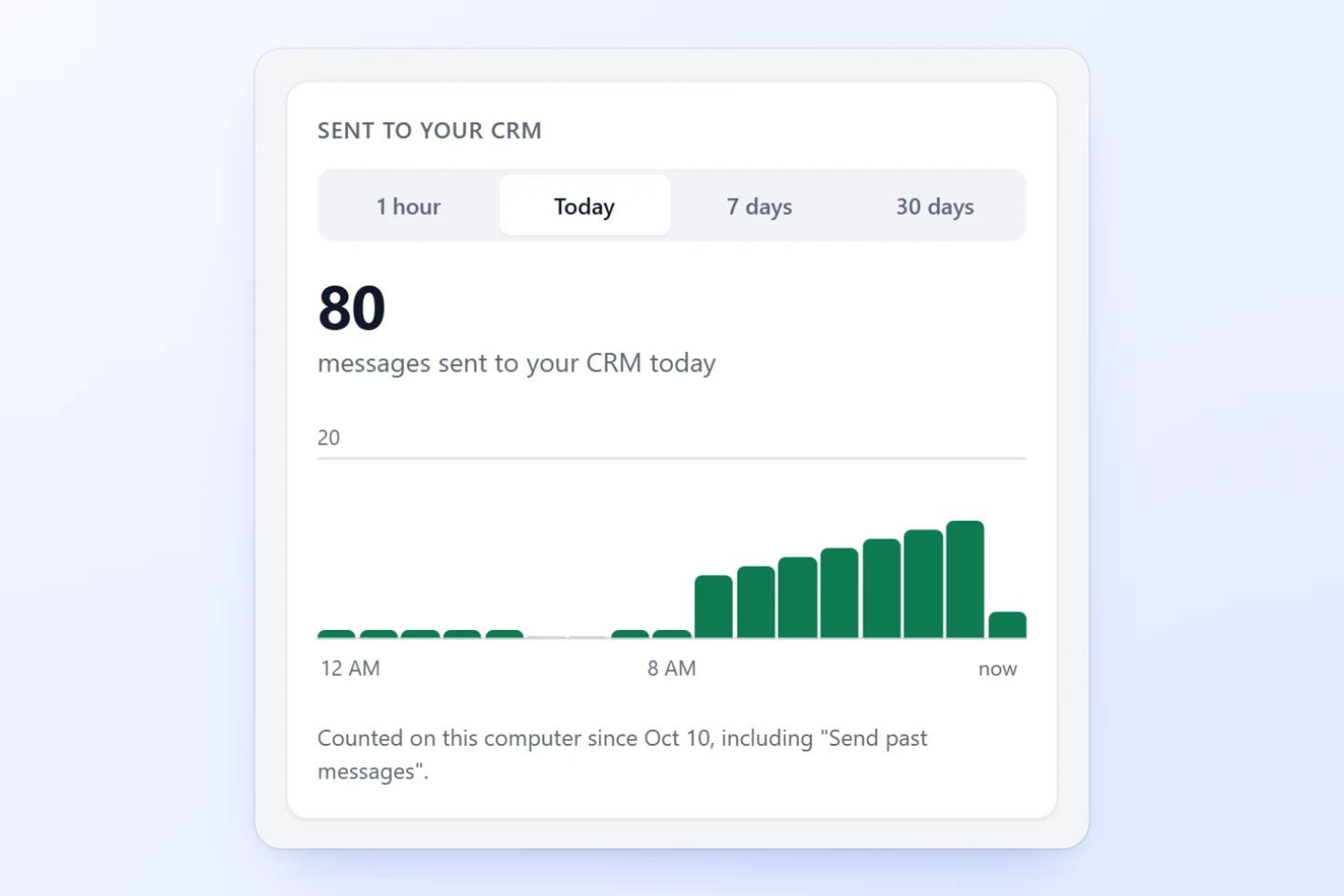
  1. Click Open dashboard, then pick 1 hour, Today, 7 days or 30 days.
  2. The big number is how many messages reached your CRM in that time.
  3. The chart shows when. Point at a bar to see its exact number.

Counts are kept on this computer and include messages sent with “Send past messages”.

Step 9: See what happened to each message

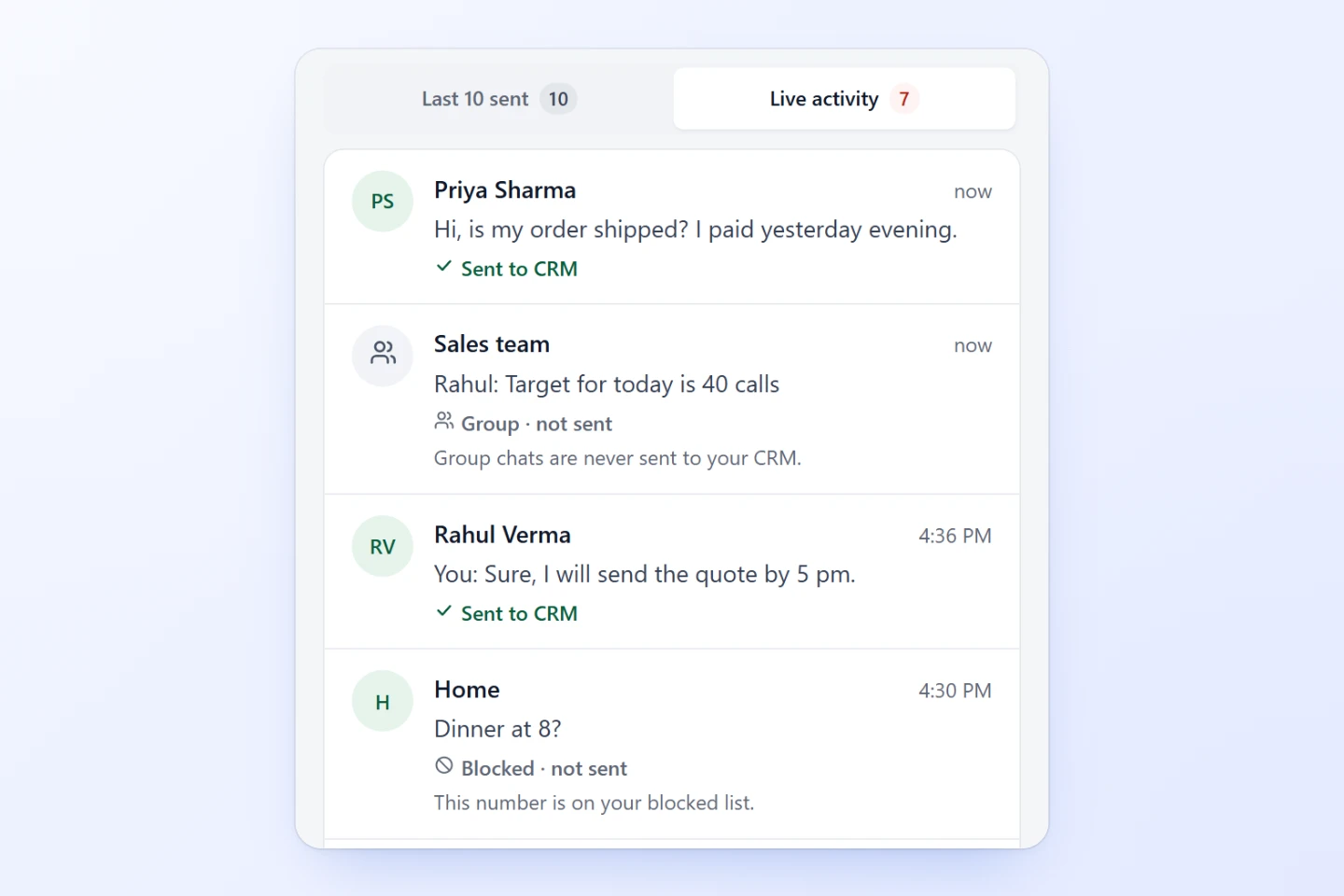
  1. Open the Live activity tab in the dashboard. Sent to CRM means your CRM has it.
  2. Group · not sent: group chats are never sent.
  3. Blocked · not sent: this number is on your blocked list.

Retrying means your CRM didn’t answer, so WappHub tries again by itself. Only the last 10 messages are kept, on this computer only.

Send older messages

Step 10: Choose the chats

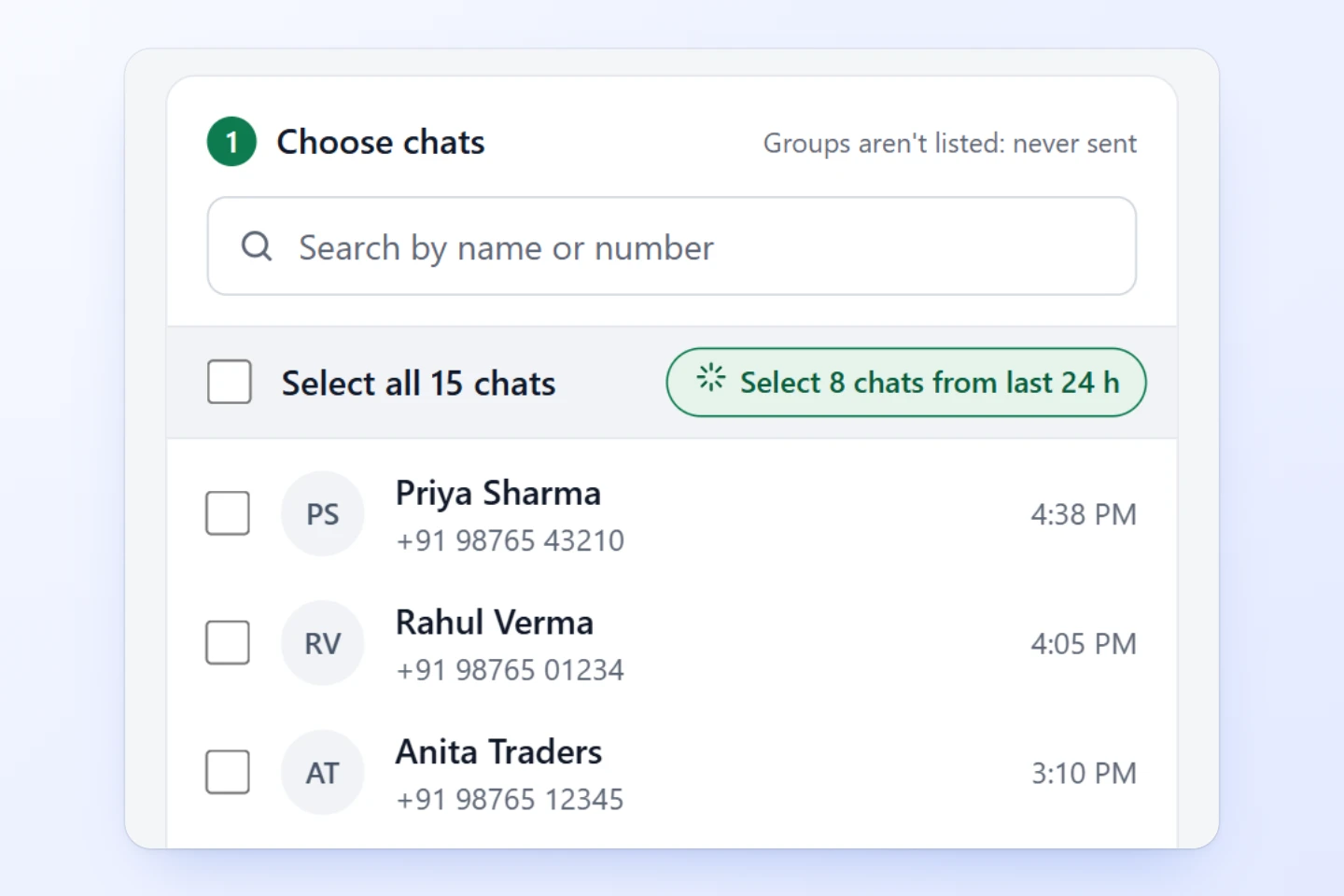
  1. On the home screen, click Send past messages. Search by name or number.
  2. Or click Select … chats from last 24 h to pick every recent chat at once.
  3. Or tick the chats you want, one by one.

Use this for chats from before you started, or for messages that came in while auto-send was off.

Step 11: Choose the time, then send

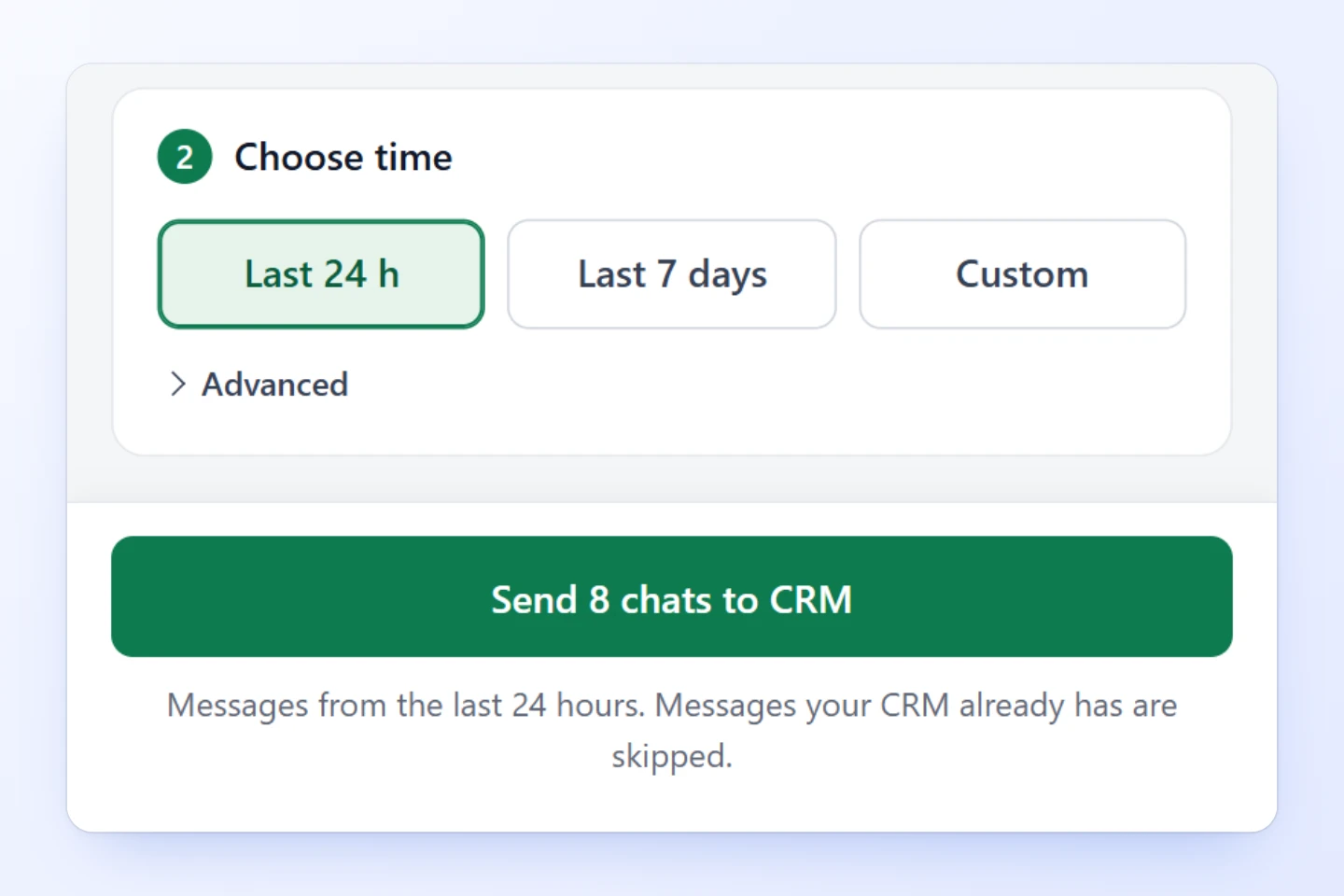
  1. Pick Last 24 h, Last 7 days or Custom dates.
  2. Leave Advanced closed unless your CRM lost messages and you want them sent again.
  3. Click the green Send … to CRM button. A bar shows the progress, and you can Stop at any time.

Messages your CRM already has are skipped, so nothing arrives twice. Older messages may load from your phone first: keep WhatsApp Web open until it finishes.

Settings and privacy

Step 13: Block private numbers

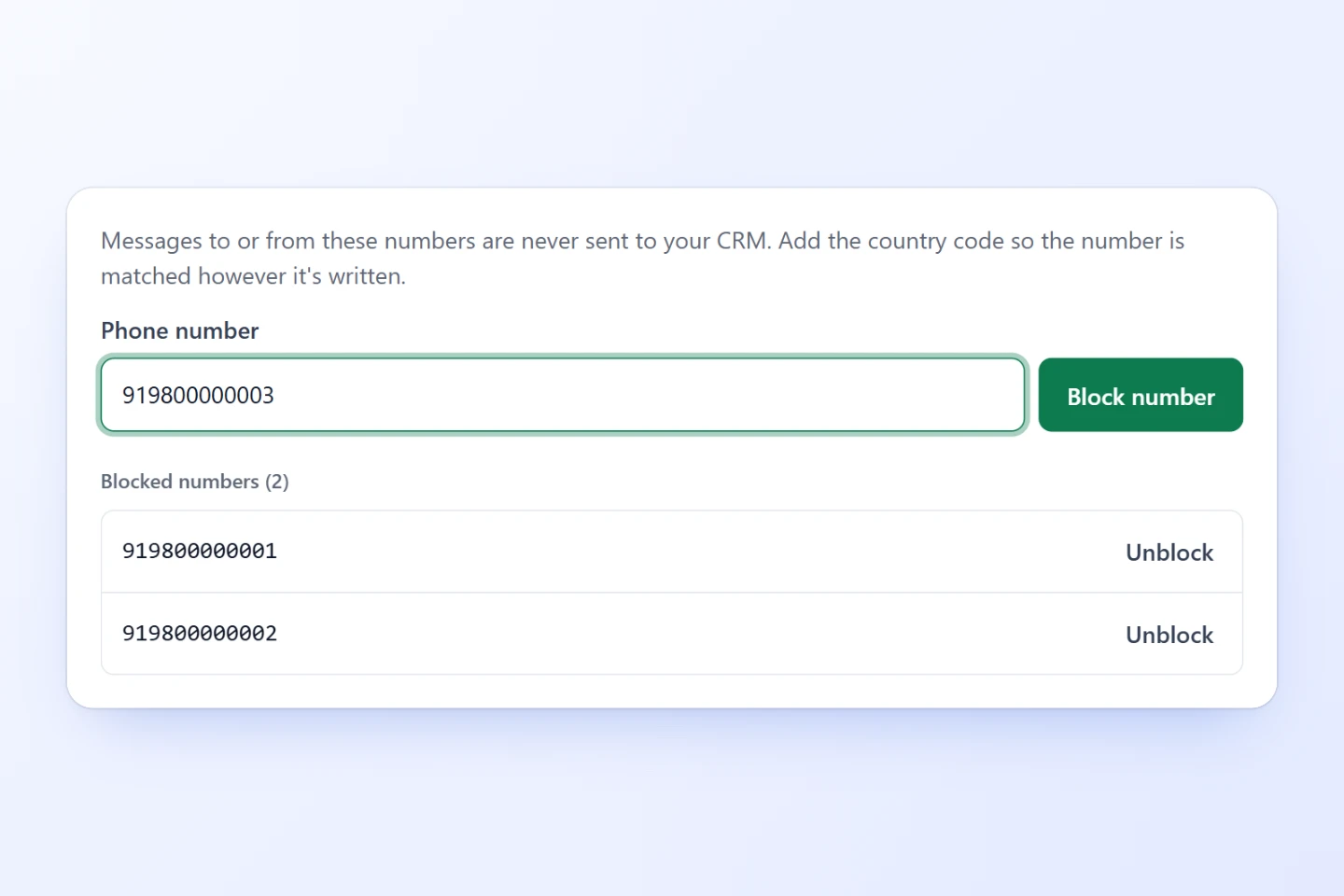
  1. Type the number with its country code, like 919876543210.
  2. Click Block number. Messages to or from it never reach your CRM.
  3. Changed your mind? Click Unblock.

Block family, friends and staff numbers so only customer chats go to your CRM.

Step 14: If your CRM needs a key or its own format

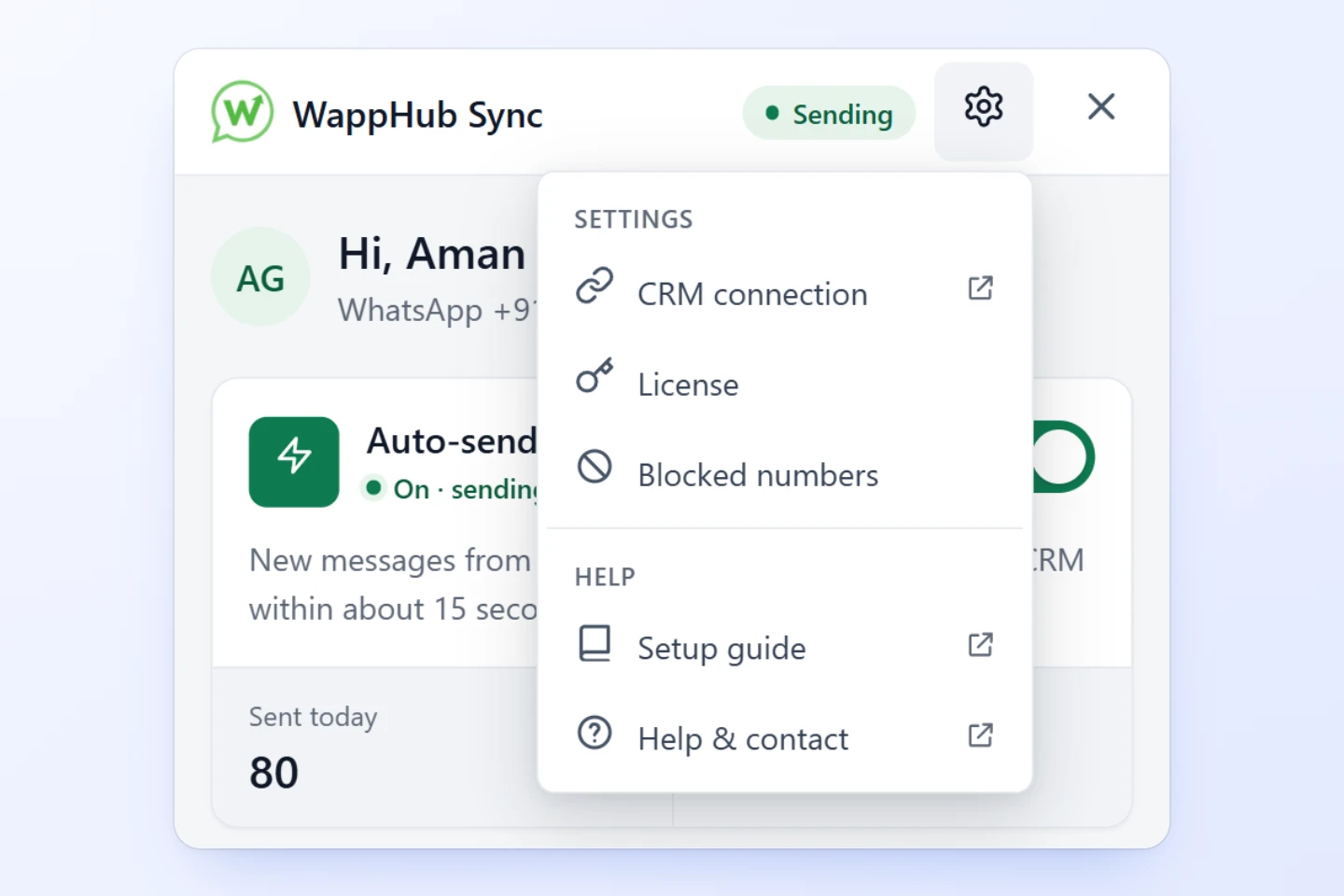
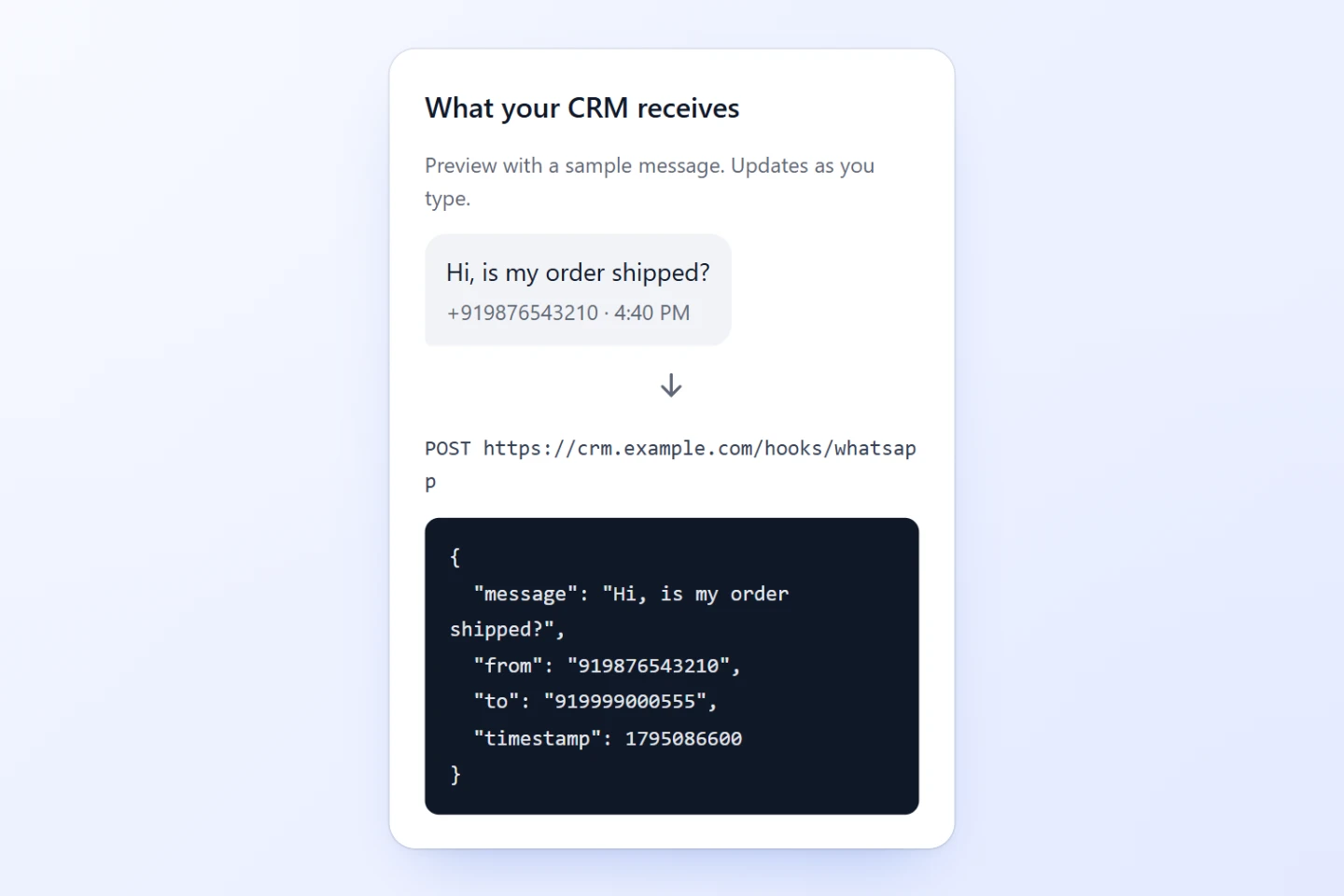
  1. Open the gear, then CRM connection and Edit. On the right, a sample WhatsApp message…
  2. …turns into exactly what your CRM receives. It updates as you type, so you can match your CRM before you test. Add an API key under Advanced: headers and authentication.

Each connection can be changed twice in its first 36 hours. After that, write to us and we’ll change it for you. Testing, and turning it on or off, never count.

You’re ready when

  • The license key is verified
  • Your CRM accepted the test, and the connection is saved
  • Auto-send is on, and the panel says Sending
  • Family and staff numbers are blocked
  • WhatsApp Web stays open in Chrome

Problems and fixes

The panel says “We couldn’t find this license key”

Copy the whole key from your purchase email and paste it again. A Bulk Sender key won’t work here: Sync Chat has its own key. Still stuck? Message us your order number.

The CRM test didn’t pass

The panel shows what your CRM answered and what to do next. Usually the address is wrong, or your CRM needs a key: click “Fix it in full settings” and add it under Advanced: headers and authentication.

The home screen says “Your CRM is refusing messages”

Your CRM stopped accepting messages, often because its key changed or expired. Click “Fix CRM connection”, update it, then send a test. Every message is tried 3 times, and anything missed can be sent later with “Send past messages”.

The panel says “Reload WhatsApp Web to connect”

This happens when WhatsApp was already open while WappHub was installed or updated. Click “Reload WhatsApp Web”. If you see a QR code, log in with your phone first. The panel opens again by itself.

Messages aren’t reaching my CRM

Check that the panel says Sending, auto-send is on, and WhatsApp Web is open in Chrome. Groups, channels, status updates and blocked numbers are never sent. The Live activity tab in the dashboard shows what happened to each message.

What happens while auto-send is off?

New messages aren’t sent, and the panel marks them “Not sent · auto-send is off”. Turn it back on, then use “Send past messages” for anything you missed.

Can I change my CRM address later?

Yes, twice in the first 36 hours after you save it. After that, write to us and we’ll change it for you. Turning a connection on or off never counts.

What does the panel keep on my computer?

Only the last 10 messages sent, so you can check them, plus the counts for the dashboard. Clear them any time from the dashboard.

Which CRMs work?

Any CRM that accepts a webhook, such as Zoho CRM, HubSpot, Salesforce or Freshworks. With PRO, our team helps you connect it.

Still stuck? We'll help.

Message us on WhatsApp or email support@wapphub.com with a screenshot, any time.